
How to
How to Password Protect Google Play Purchases on the Nexus 7
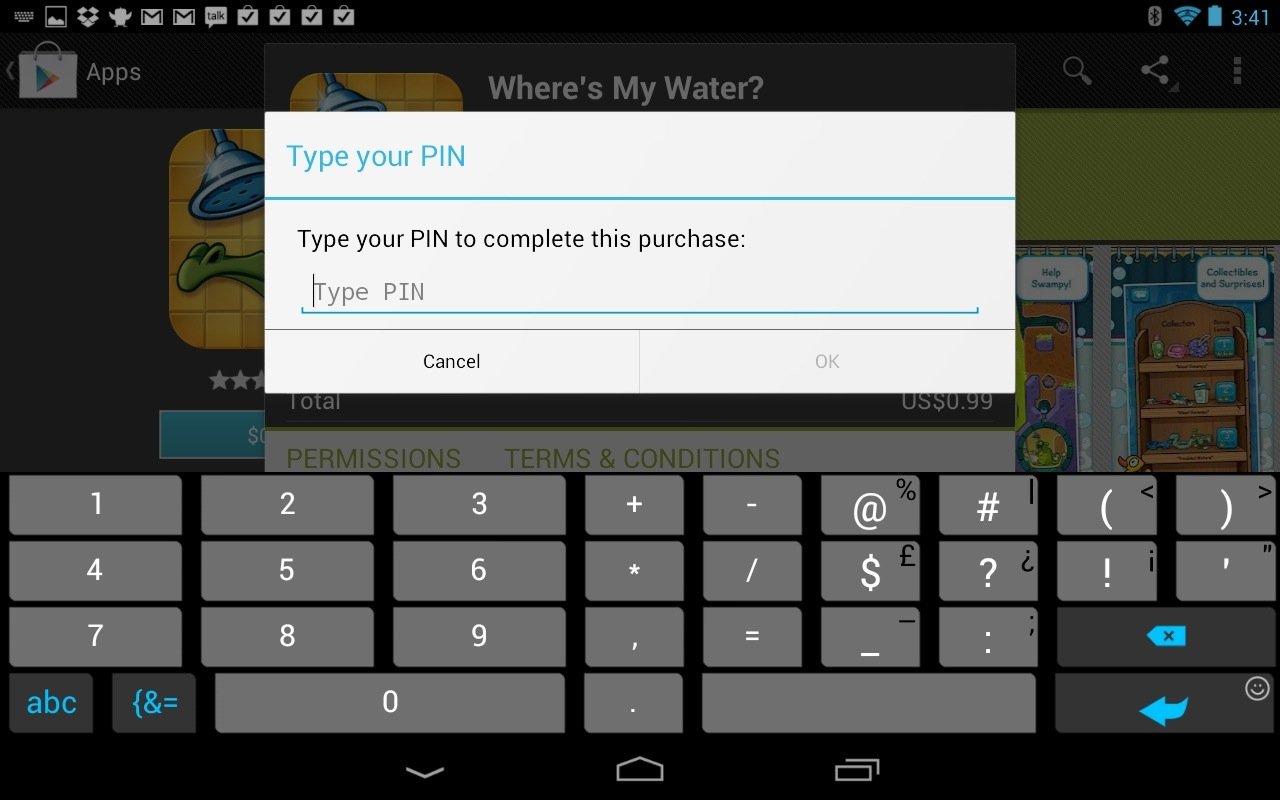
Because the Nexus 7 is affordable, small and relatively durable it makes for a great tablet to share with the entire family, including younger users who can easily run up a high bill in the Google Play store.
Reader Mara bought the Nexus 7 for her 5-year old son to use, and wants to make sure he can’t buy apps in Google Play without approval, just like on her iPad.
While the Google Play store doesn’t turn the setting on by default, it allows users to set a PIN for Play Store purchases so they don’t have to worry about others buying apps while using the tablet.

Setting a PIN for Google Play purchases prevents accidental purchases.
We highly recommend setting up a Google Play PIN to prevent children from going on an app or movie shopping spree.
How to Set a Google Play Password on the Nexus 7
These directions should work on any Android device running a recent version of the Google Play store, but are targeted towards Android 4.1 Jelly Bean on the Google Nexus 7 tablet.
Open the Google Play Store.

Open Google Play settings.
Tap on the Menu icon in the upper right.
Tap on Settings.

Google Play security settings.
Scroll down and tap on Set or Change PIN.
Enter the PIN twice.

Choose a secure PIN.
Tap on the box to Use PIN for purchases.

Don’t forget this final step.
That’s it. Any purchase will now require a PIN before completing. This is also a good time to check out the content settings if you want to restrict certain ratings of apps.
While this system will likely prevent a 5-year old from accidentally purchasing apps and movies it is very easy to reset the PIN, so don’t use this as a means of preventing older users or those with malicious intent from making purchases on Google Play.
