
Apple
How to Use the Evasi0n iOS 6.1 Jailbreak Tool
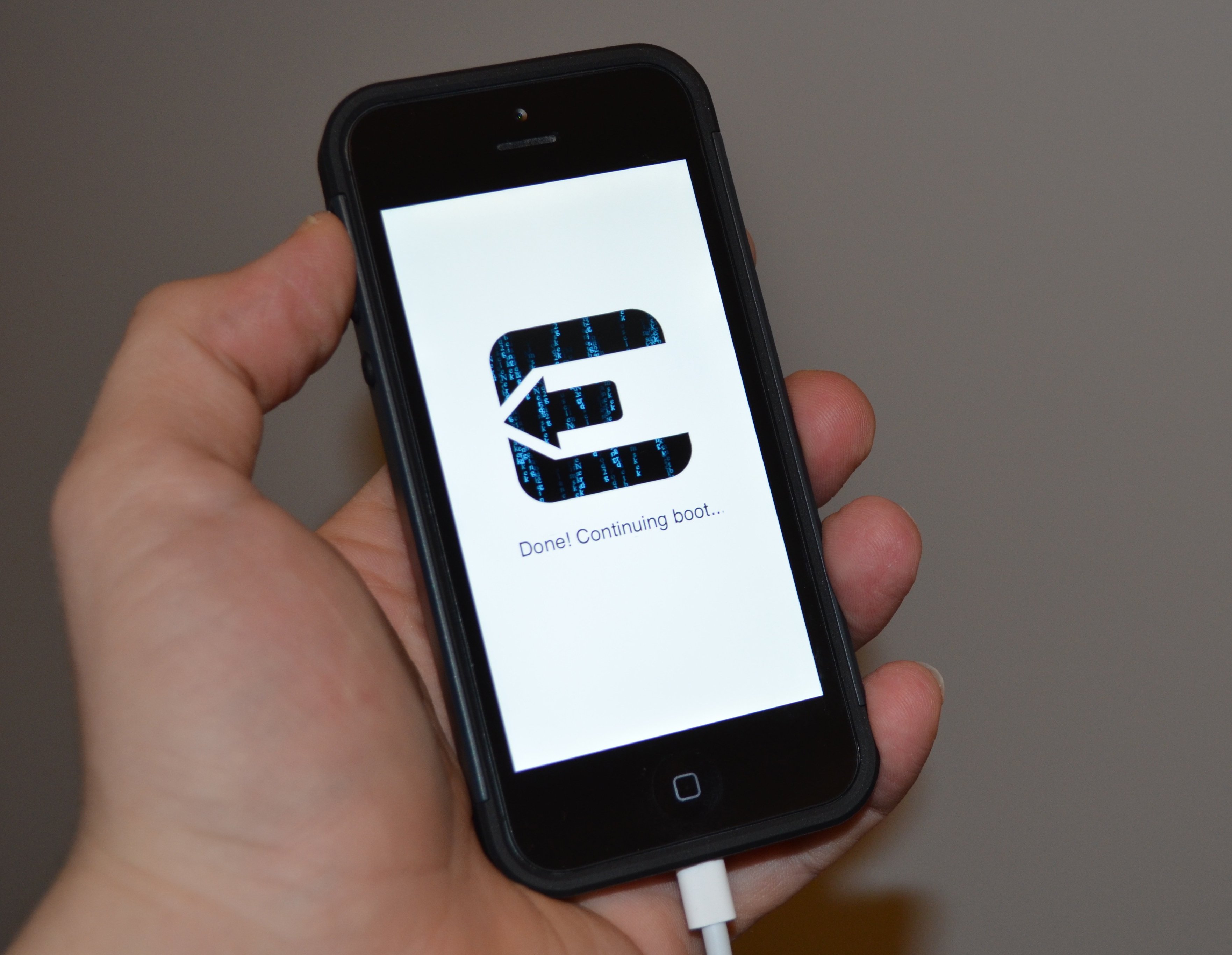
The evasi0n iOS 6.1 jailbreak is out and Gotta Be Mobile is here to show you how to use the evasi0n iOS 6.1 jailbreak tool.
The jailbreaking process is straightforward, but many new jailbreak users will appreciate our evasi0n walkthrough with screenshots of the process and soon a video guide.
The evasi0n iOS 6.1 jailbreak is available for the iPhone 5, iPad 4 and iPad mini as well as all Apple mobile devices running iOS 6 or higher. The tool works on iOS 6 and smaller versions up to iOS 6.1.
Read: How to Unjailbreak iOS 6.1
How to Use the Evasi0n iOS 6.1 Jailbreak
The following ten steps will help you use evasi0n to jailbreak the iPhone, iPad, iPad mini and iPod touch. check out the step-by-step instructions below, or watch our two-minute How to Jailbreak the iPhone 5 video below.
Step 1. Plug your iPhone, iPad or iPod touch into your computer and perform a backup in iTunes. Click on “Back Up Now” in iTunes under the iPhone tab.

Make a backup before using the evasi0n jailbreak tool.
Step 2. Download the evasi0n iOS 6.1 jailbreak tool for Mac, Windows or Linux and install. this will unzip the evasi0n tool and open a folder with three files. If the links up top don’t work, scroll down to find mirrors.

Unzip the evasi0n tool to get started.
Step 3. The recommended step is to restore the iPhone in iTunes and set up as a new phone to avoid any bugs, but users are not required to do this.
Step 4. Remove a Passcode if you have one on your iPhone. This is required for the jailbreak to work, and you can re-enable after the iOS 6.1 jailbreak is complete.
Tap on Settings -> General -> Passcode Lock – Enter code -> turn Passcode Off -> Enter Passcode.
Step 5. With the iPhone plugged in launch the evasi0n app.

Launch the evasi0n iOS 6.1 jailbreak tool and click Jailbreak.
Step 6. Click Jailbreak. After this, do not touch the iPhone, iPad or iPod touch until instructed to do so.
Step 7. Wait while the iPhone reboots as part of the evasi0n jailbreak. This may happen several times, so users should wait until the jailbreak completes to disconnect the iPhone.

When prompted, unlock the iPhone.
Step 8. When prompted unlock the iPhone or iPad and tap on the Jailbreak icon. Tap once, do not unplug the device or try tapping it a second time.

Tap Jailbreak to complete the evasi0n jailbreak.
Step 9. The evasi0n iOS 6.1 jailbreak tool will inject the final jailbreak data.

The evasi0n iOS 6.1 jailbreak is complete.
Step 10. When the evasi0n iOS 6.1 jailbreak tool says, “Jailbreak complete!” the jailbreak process is over, but the phone may restart several times to finish the process.

Wait for the evasi0n jailbreak to finish on the iPhone.
Setting up Cydia on iOS 6.1
With the iOS 6.1 jailbreak complete, find the Cydia icon and tap on it once. The app will launch and initialize Cydia. The App will then restart. The iPhone or iPad may also restart during this process.

Cydia will prepare the filesystem before you can use it.
When complete, tap on Cydia and select your user type. Now you can go looking for the best iOS 6.1 jailbreak apps.
Stay tuned for the latest iOS 6.1 jailbreak news.
