
Apple
How to Use a 4 Digit Passcode on iOS 9 or iPhone 6s
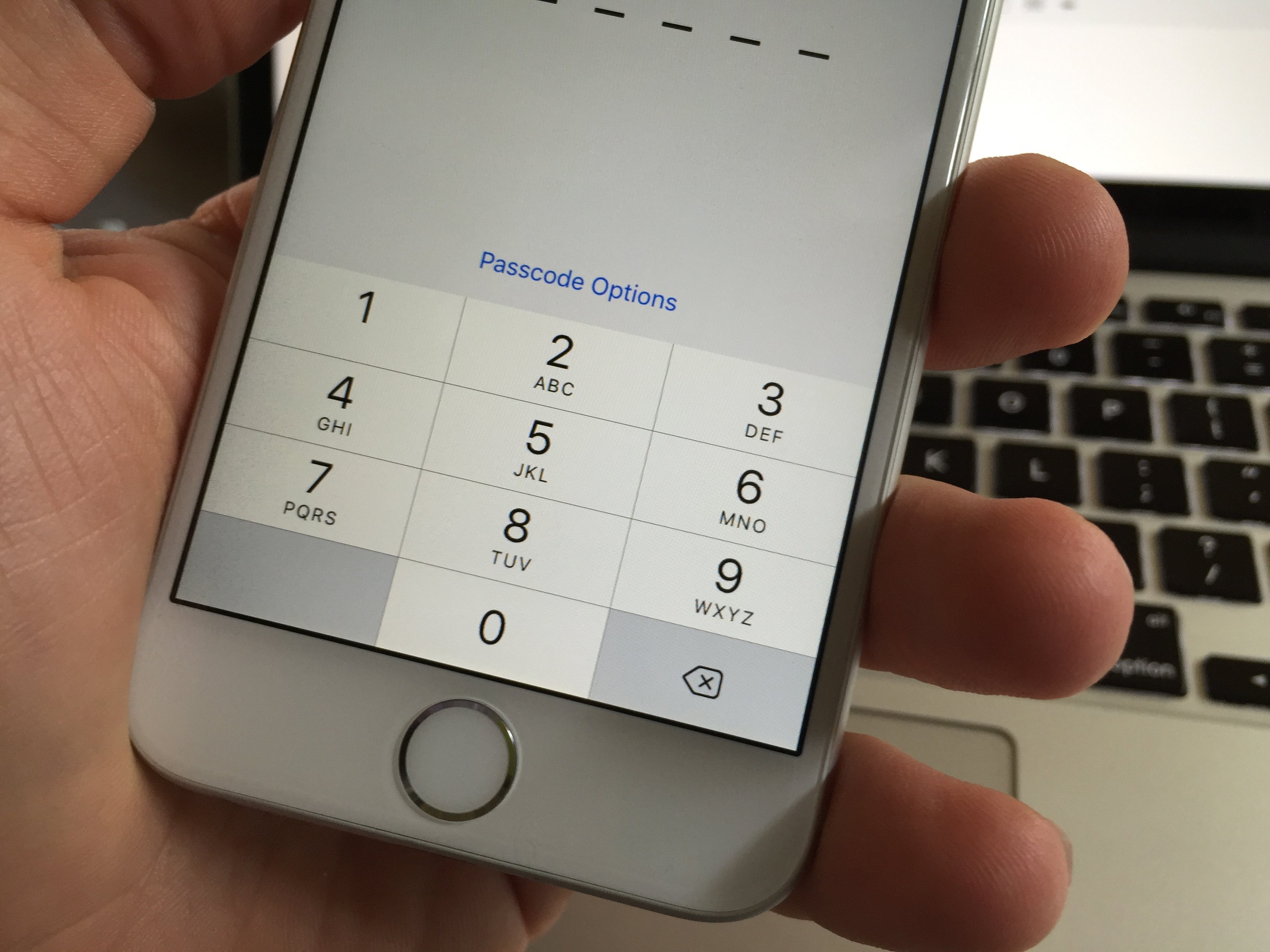
We’ll show you how to use a 4-digit passcode on iOS 9 or the iPhone 6s so that you can login faster using the same four numbers.
With the new iOS 9 software Apple introduced a new six digit passcode that is on by default when you set up your iPhone 6s or when you change your passcode on iOS 9.
By simply adding two more digits to the iOS 9 passcode Apple is able to make it much tougher to guess the password.

How to set a 4-digit passcode on iOS 9 or the iPhone 6s instead of using six digits.
You can choose to use a 4 digit passcode instead of the six digit passcode if you prefer something shorter to type. Here’s how you can turn this on in the initial setup or in your settings.
When you are prompted to choose a passcode when setting up your iPhone 6s or when you are in Settings when choosing a new Passcode you’ll need to tap on Passcode Options.
This will open up another menu that lets you choose custom passcodes or set a 4-digit iPhone passcode on iOS 9.

Tap to see options and choose a 4 digit passcode on iOS 9 or the iPhone 6s.
You may not be able to use this depending on security settings if you connect an exchange account for work. If you see an error, this may be why you cannot use the 4-digit iPhone passcode.
If you need to change your iPhone passcode, go to Settings -> Touch ID & Passcode -> Enter your Passcode -> Change Passcode.
Enter your current Passcode and then enter your new Passcode twice to confirm the change.
Keep in mind that if you use a 4-digit passcode on iOS 9 or the iPhone 6s, you will use a less secure passcode option. If you use Touch ID for most of your unlocking, it is a wise idea to use the 6-digit iPhone passcode.
[slides postid=314615]
