
Android
How to Disable the Galaxy S7 Always On Display
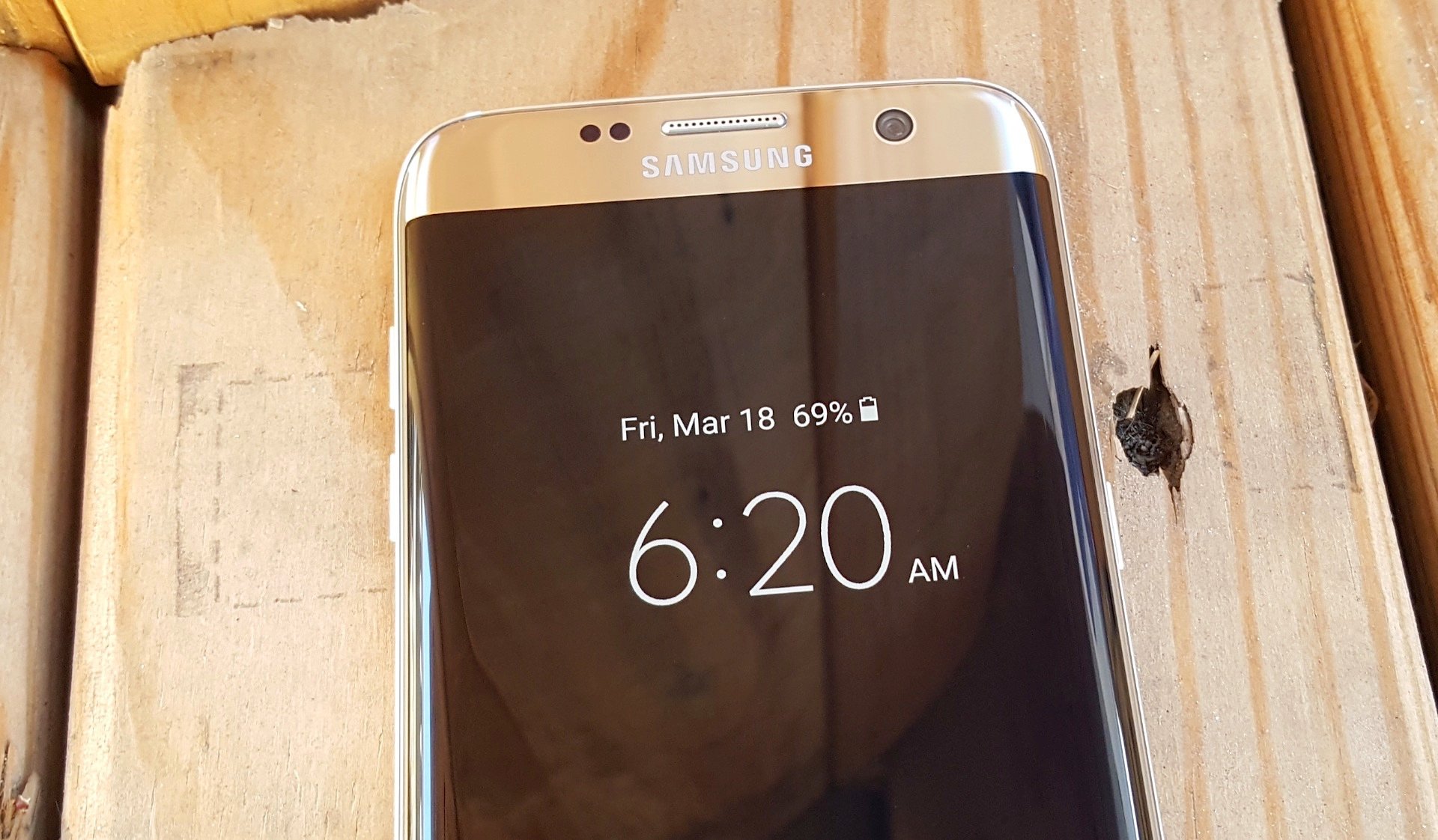
This quick guide will explain how to disable or turn off the Galaxy S7 always on display. With this feature information is shown 24/7 in a low power state. It’s nice, but not everyone wants to use it. If so, here’s how to turn it off completely.
With the update to Android 7.0 Nougat Samsung added even more features to this, and it occasionally moves too. Which can be extremely distracting.
Read: Top 10 Galaxy S7 Edge Settings to Change
Even when you turn off the Galaxy S7 or Galaxy S7 Edge screen, it’s still on. A little area is lit-up with the time, date, battery level and even some notifications for emails or incoming messages. Below are the steps you’ll need to take to quickly turn it off in settings.

Instructions
To disable the always on display feature we simply need to head into Settings > Display > Always On Display > and flip the switch to OFF. Here’s are the step by step instructions and some screenshots to help you disable it.

- Pull down the notification bar and hit the gear-shaped Settings button
- Navigate to the “Device” column and select “Display“
- Tap “Always On Display“
- Select the On/Off switch to turn it off
- That’s it, you’re all done
Easy enough, right? Now the screen will completely turn off, and users will need to tap power or home to turn on the phone to see the time, date, battery life or messages. For more details and information about customization, continue reading.
Other Details & Customization
At first I didn’t like the Always On Display feature and quickly disabled it, but then realized how convenient it was so turned it back on, and did a bit of customizing to my liking. It even works with some 3rd party apps, or dims at night so it won’t be too distracting.
It isn’t completely customizable, but we do have some options. Users can choose between seven different clocks, backgrounds, the calendar and other things. Samsung updates it periodically too.

Navigate to Settings > Display > Always On Display > and select “content to show”, “Clock/Calendar style”, or “Background image” to make your Galaxy S7 or S7 Edge always on display unique to what you’d prefer.
In closing, Samsung states that the average user turns on their device over 150 times a day. Checking the time or notifications. Using the Always-On display in a low-power state uses less than 5% throughout an 8 hour work day. So this feature could actually improve battery life. Either way, disable it with our instructions above if you’d like.
While you’re here, below are some great accessories for the Galaxy S7 or Edge.
[slides postid=336164]
