
Android
How to Disable LG G5 Automatic App Updates
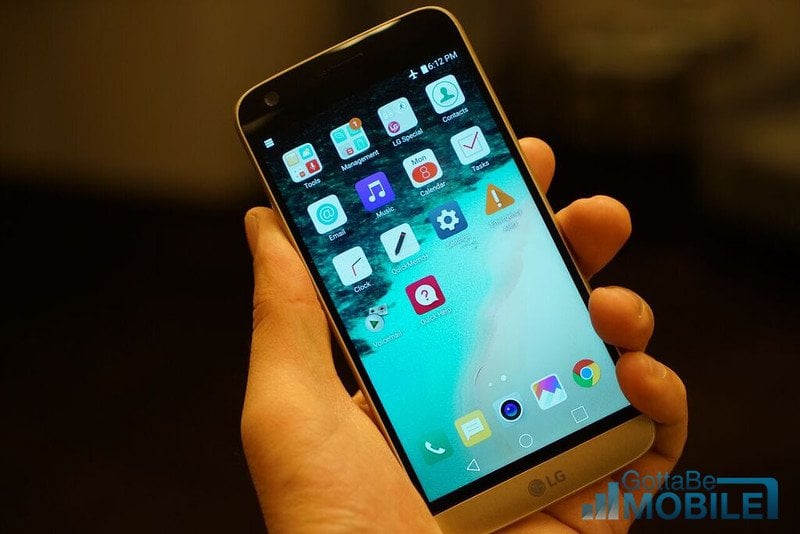
The unique new LG G5 smartphone is now available in the United States and around the globe, which means lots of new users are full of questions. Out of the box the LG G5 is loaded full of apps from LG, carriers, Facebook, Amazon and more, and they all need to be updated. Read on for instructions on how to manage apps updating automatically.
LG’s smartphone has a lot of options and settings, and sometimes it can be rather confusing. One thing we always get questions about are apps that update automatically, so here we’ll explain how to disable that from happening on your new phone.

Out of the box and by default the LG G5 will update any and all apps automatically, which is the easiest way to do things. At the same time, many want to control this, and know what’s going on with apps and why they’re updating. This could be to save data and update on WiFi only, or to know what’s new or changing. Google’s Play Store even adds an icon for new apps on the homescreen automatically, and we can disable that obnoxious feature in this settings menu as well.
Whether or not owners should do this is up to them, and everyone has different wants or preferences. Those that want total control will want to follow the steps below.
Instructions
We aren’t digging through the phones settings, and to do this we’ll need to use the Google Play Store. Navigate to the Store by tapping the icon on your homescreen, or by finding it in the app tray.
Once inside the Google Play Store users can select the top left (3-lines) menu button next to the “Google Play” search bar and scroll down to “Settings” and select settings as shown in our image below. All the options to change everything mentioned above is in this quick and easy to access menu.

This is the general settings menu for the Google Play Store. One of the first options listed is “Auto-update apps” and you’ll want to tap this. From here simply choose what works best for your situation. By default it will be set to automatically update apps over Wi-Fi, which is what most users should leave it on. We don’t want apps updating while using data, as that can use a full 3-5GB data plan very quick, especially at first, or if users install big games like Clash of Clans, Asphalt 8, or others. Instead select “Do not auto-update apps”.

Choosing not to auto update will mean owners will constantly be notified in the top notification bar that apps need to be updated, rather than just updating on their own. This can be irritating, but it’s the method of choice for many. It gives you control to see what is being updated, check changelogs to know what’s new, and even stop updates.
Our recommendation would be to leave it set to update apps over WiFi to save data, so it updates automatically but not with your data plan. However, you’re here to stop that, so select do not auto update. Then, as we mentioned above, in here you can also uncheck the feature that automatically puts icons on the homescreen whenever an app is downloaded. It’s a nice feature to have, but makes things messy really quick if you download a lot of apps. While you’re here, check out some great LG G5 cases outlined below.
[slides postid=336489]
