How to
Why Your Laptop Fan Is So Loud and How to Fix It
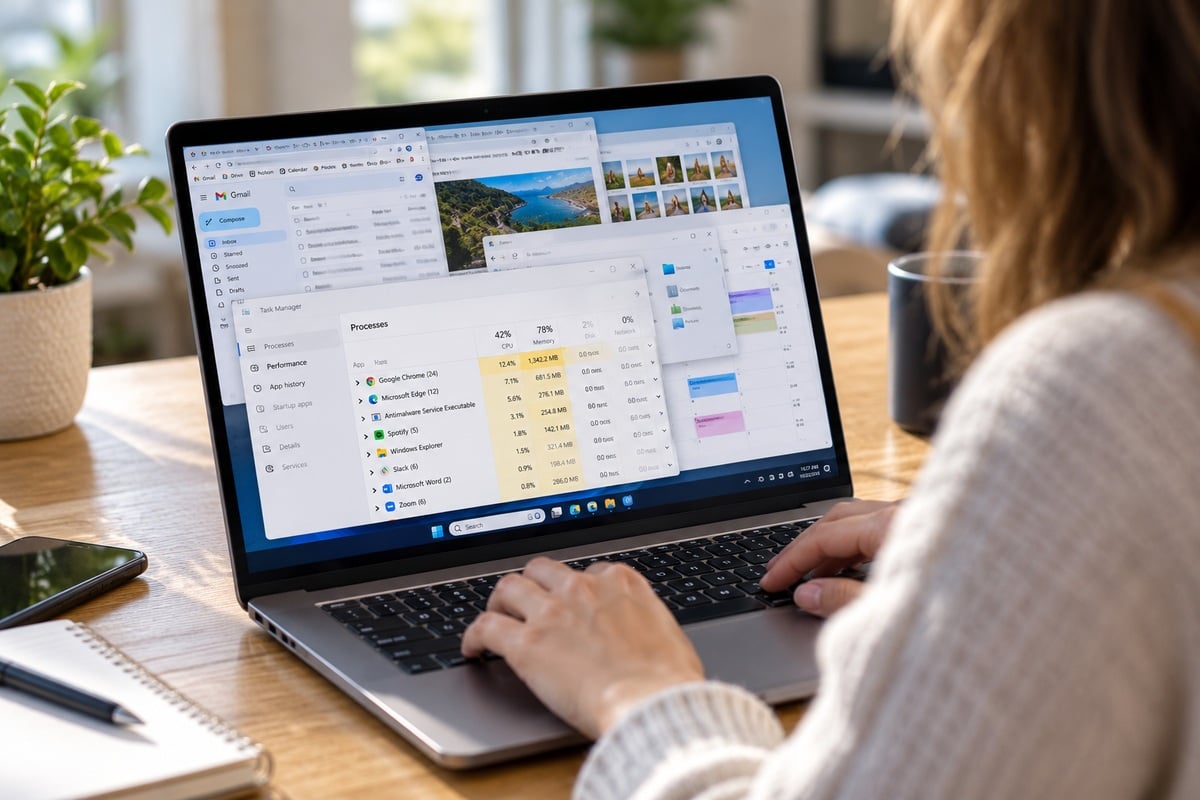
Your laptop used to be relatively quiet. Now, every time you open a few browser tabs or start working, it sounds like a tiny airplane preparing for takeoff.
A loud laptop fan isn’t always a sign that something is broken. Fans help prevent overheating, and they naturally spin faster when your computer is working harder.
But if your laptop fan is constantly running, suddenly much louder than usual or making strange noises, there may be something worth fixing.
Here are 10 things to check before assuming you need a new laptop.
1. Check What’s Running in the Background
One of the most common reasons a laptop fan gets loud is that something is using too much processing power.
You might have dozens of browser tabs open, an application updating in the background or a program that isn’t responding properly.
Even if you’re not actively doing much, your laptop might be.
On Windows
-
Press Ctrl + Shift + Esc to open Task Manager.
-
Click Processes.
-
Select the CPU column to sort applications by processor usage.
-
Look for programs using unusually high amounts of CPU.
If you recognize an application you don’t need, close it normally.
Avoid ending unfamiliar system processes just because they’re using resources.
On a Mac
-
Open Activity Monitor.
-
Click the CPU tab.
-
Sort by % CPU.
-
Look for applications using unusually high processing power.
Quit unnecessary applications and see whether the fan quiets down.
If the fan gets quieter after closing a particular program, you’ve found a likely cause.
2. Stop Using Your Laptop on Soft Surfaces
Your bed, couch and favorite blanket might be comfortable for you, but they aren’t necessarily comfortable for your laptop.
Many laptops use vents along the bottom, sides or back to move air through the computer.
Placing your laptop on a pillow, blanket or other soft surface can block airflow.
That forces the cooling system to work harder.
Try moving your laptop onto a hard, flat surface like a desk or table.
If you frequently use your laptop on the couch or in bed, consider a lap desk that provides a stable surface without blocking ventilation.
3. Clean Dust From the Vents
Over time, dust and lint can accumulate around your laptop’s cooling vents.
When airflow becomes restricted, internal temperatures can rise and the fan may need to work harder.
Turn off your laptop, unplug it and inspect the vents.
If you see visible dust, gently remove it using a soft brush or follow your manufacturer’s cleaning instructions.
Avoid inserting objects into the vents or forcing compressed air into the computer without checking the manufacturer’s guidance.
Some laptops have delicate internal fans that can be damaged by improper cleaning.
If your laptop is several years old and has never been cleaned internally, accumulated dust could be contributing to the problem.
4. Restart Your Laptop
Yes, the classic restart.
It’s recommended so often because temporary software problems really can cause excessive processor usage.
A background task might be stuck, an application might have developed a memory leak or your operating system may simply need a fresh start.
Save your work, restart the laptop and give it a few minutes to settle.
If the fan immediately becomes loud again, move on to the other troubleshooting steps.
5. Close Unnecessary Browser Tabs
Web browsers can consume a surprising amount of system resources.
Streaming video, animated advertisements, web applications and poorly optimized websites can all increase processor usage.
Having 30 tabs open doesn’t automatically mean your laptop will overheat, but certain websites can place a substantial load on your computer.
Close tabs you’re no longer using.
If you use Chrome or Edge, check whether the browser’s memory-saving or energy-saving features are enabled.
You can also test whether one particular website causes the fan to speed up.
If the laptop becomes noticeably quieter after closing your browser, it’s worth investigating extensions and active tabs.
6. Check for Software Updates
An outdated operating system, driver or application can sometimes cause performance problems that increase fan activity.
Check for available updates.
Windows
Open Settings > Windows Update.
Install relevant updates and restart when prompted.
Mac
Open System Settings > General > Software Update.
Install available updates.
Keep in mind that fans may temporarily run faster while updates are installing, files are being indexed or other maintenance tasks are taking place.
If the fan is loud immediately after a major update, give the computer some time to finish its background work.
7. Change Your Power Settings
Many laptops offer different performance modes.
Higher-performance settings may allow the processor to use more power, generate more heat and trigger faster fan speeds.
If you don’t need maximum performance, switching to a more balanced mode may help.
Windows
Open Settings > System > Power & battery.
Look for Power mode and select Balanced or another lower-power option available on your device.
Mac
On supported Mac laptops, Low Power Mode can reduce energy usage and may help reduce heat generation.
Open System Settings > Battery and review the available energy settings.
Not every laptop offers the same controls, and some manufacturers include their own thermal or fan-management utilities.
8. Check the Room Temperature
Your laptop’s cooling system has to work with the air around it.
If you’re using your computer outside on a hot day, near a sunny window or in a room without adequate ventilation, the fan may need to work harder.
Move the laptop into a cooler environment and keep it out of direct sunlight.
Make sure there’s enough open space around its vents.
Avoid putting the laptop in a refrigerator or freezer to cool it down.
Rapid temperature changes and condensation can damage electronics.
9. Disconnect Unnecessary Accessories
External monitors, USB devices and other accessories can increase a laptop’s workload or power consumption.
For example, driving multiple high-resolution displays may require additional graphics processing.
If your laptop fan becomes noticeably louder when connected to a docking station or external monitor, try disconnecting those accessories temporarily.
Then reconnect them one at a time.
This can help determine whether the additional workload is contributing to the noise.
10. Consider a Hardware Problem
If you’ve tried the simpler fixes and your laptop fan is still unusually loud, the problem may be physical.
Possible causes include accumulated internal dust, a failing fan, worn bearings or a cooling system that isn’t working properly.
A fan that makes grinding, rattling or clicking noises is especially concerning.
Those sounds are different from the normal rushing-air noise of a fan spinning quickly.
If you suspect a hardware problem, stop using the laptop for demanding tasks and contact the manufacturer or a qualified repair technician.
Opening the laptop yourself may not be advisable, especially if it’s under warranty.
Why Is My Laptop Fan Loud When I’m Not Doing Anything?
This is one of the most confusing situations.
Your laptop is sitting on the desk with no obvious applications running, yet the fan is working overtime.
The explanation is often background activity.
Your computer might be downloading updates, syncing cloud files, scanning for malware, indexing documents or performing other maintenance tasks.
Open Task Manager on Windows or Activity Monitor on macOS to check CPU usage.
If the fan settles down after a few minutes, the behavior may be normal.
If it continues for hours, investigate which process is responsible.
Why Is My Laptop Fan So Loud While Charging?
Some laptops allow higher performance when connected to external power.
Charging can also generate additional heat.
Depending on your laptop’s design and settings, this may cause the fan to run faster.
If the fan becomes loud only when charging, check your power mode and make sure the laptop has adequate ventilation.
However, if the charger, battery area or laptop becomes unusually hot, disconnect it and have the equipment inspected.
Is a Loud Laptop Fan Bad?
Not necessarily.
A fan that gets louder during gaming, video editing, large downloads or other demanding activities is often doing exactly what it’s supposed to do.
The more important questions are whether the behavior is new, whether the laptop is overheating and whether the fan sounds mechanically damaged.
Normal fan noise usually sounds like rushing air.
Grinding, clicking, scraping or rattling can indicate a problem that deserves attention.
How to Tell If Your Laptop Is Overheating
A loud fan alone doesn’t prove that your laptop is overheating.
But watch for other warning signs:
-
The laptop becomes unusually hot to the touch.
-
Applications slow down dramatically.
-
The computer unexpectedly shuts down or restarts.
-
You receive temperature warnings.
-
The fan runs at maximum speed even during light use.
If your laptop is shutting down unexpectedly or displaying overheating warnings, stop demanding tasks and address the cooling issue before continuing.
Should You Buy a Laptop Cooling Pad?
A cooling pad may help some laptops, particularly models with air intakes on the bottom.
However, results vary depending on the laptop’s design and how its cooling system works.
A simple laptop stand can also improve airflow by lifting the computer off the desk.
Before buying anything, try using the laptop on a hard, flat surface and checking for software or dust-related problems.
A cooling pad won’t fix a failing internal fan or a serious hardware issue.
When Is It Time for a New Laptop?
A loud fan doesn’t automatically mean your laptop is finished.
If the problem is caused by software, blocked vents or a relatively inexpensive fan replacement, fixing it may be worthwhile.
But if your computer is older, frequently overheats, struggles with everyday tasks and needs multiple repairs, replacement might make more sense.
The key is figuring out whether you’re dealing with a cooling problem or a laptop that’s simply struggling to handle your workload.
FAQ
Why Is My Laptop Fan Suddenly So Loud?
A sudden increase in fan noise may be caused by high CPU usage, background updates, blocked airflow, dust buildup or changes in performance settings.
Is It Normal for a Laptop Fan to Run Constantly?
Some laptops run their fans frequently, especially under heavier workloads. However, a fan running at maximum speed continuously during light use may indicate a software or cooling problem.
How Do I Make My Laptop Fan Quieter?
Close unnecessary applications, check CPU usage, improve ventilation, clean accessible vents safely and review your power settings.
Can Dust Make a Laptop Fan Loud?
Yes. Dust can restrict airflow and cause the cooling system to work harder. Heavy buildup can also contribute to overheating.
Should I Worry If My Laptop Fan Is Making a Grinding Noise?
Yes. Grinding, scraping or rattling can indicate a mechanical problem with the fan. Have the laptop inspected before the cooling system fails.
The Bottom Line
If your laptop fan is loud, start by checking what’s running in the background and making sure the computer has enough airflow.
Many fan problems can be improved without replacing hardware.
But if the noise is accompanied by overheating, unexpected shutdowns or grinding sounds, it’s worth having the laptop professionally inspected.
A little fan noise is normal. A laptop that sounds like it’s trying to leave the runway every time you open your email deserves some attention.
This article may contain affiliate links. If you purchase through these links, we may earn a commission at no extra cost to you.
Helpful Products
Check this out on Amazon: Adjustable Aluminum Laptop Stand
Check this out on Amazon: Laptop Cooling Pad with Fans
Check this out on Amazon: Laptop Lap Desk