How to
5 TV Settings You Should Change for a Better Picture
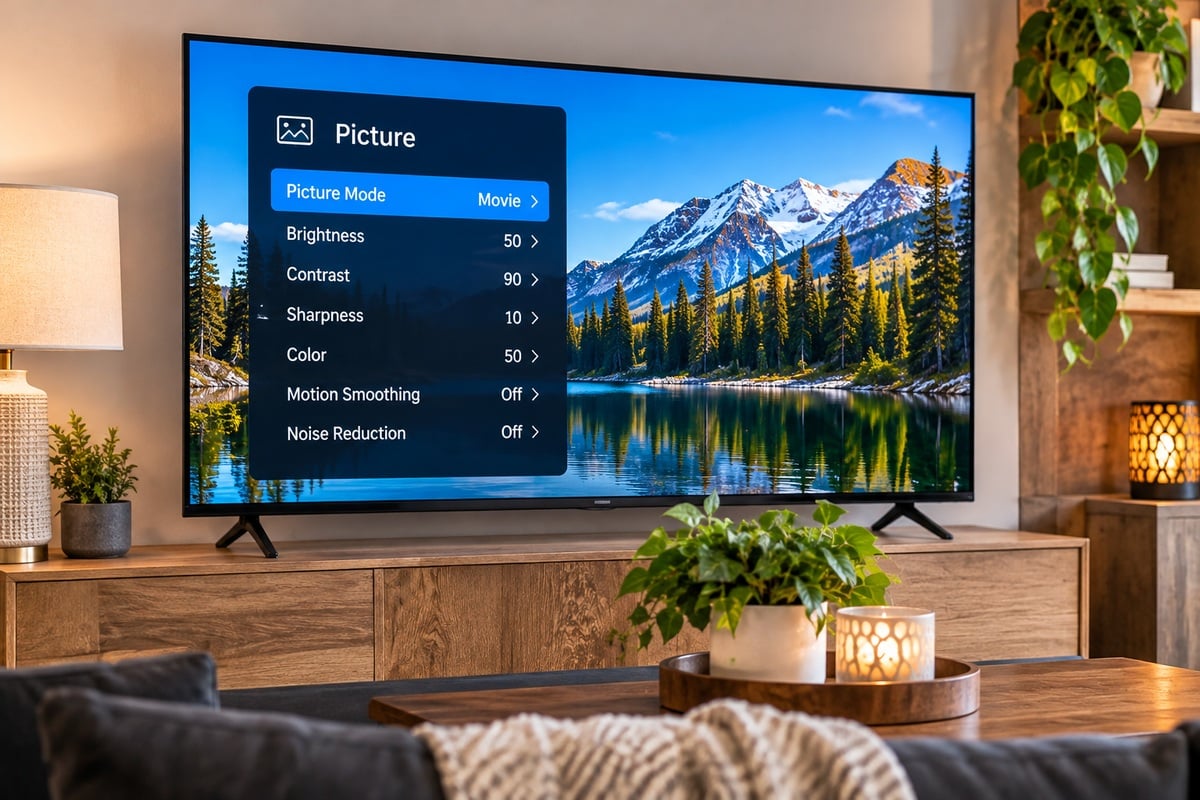
Your brand-new 4K television should look amazing right out of the box.
But sometimes movies look strangely smooth, people’s faces appear overly sharp, colors look unnatural, or dark scenes are nearly impossible to see.
Before blaming the television, take a look at its picture settings.
Many TVs come with presets designed to look impressive in brightly lit stores. Those same settings aren’t necessarily ideal for watching movies and shows at home.
Fortunately, you don’t need expensive calibration equipment to improve your picture.
Here are five TV settings worth checking on Samsung, LG, Sony, TCL, Hisense and other popular televisions.
1. Turn Off Motion Smoothing
Have you ever watched a movie on a new television and thought everything looked a little too smooth?
That’s often caused by motion smoothing.
Movies are commonly filmed at 24 frames per second. Motion smoothing uses processing to create additional frames, making movement appear more fluid.
While some people enjoy the effect during sports, it can make movies look unnaturally smooth.
This is commonly called the soap opera effect.
How to Find Motion Smoothing
Different television manufacturers use different names.
| TV brand | Common setting name |
|---|---|
| Samsung | Picture Clarity Settings |
| LG | TruMotion |
| Sony | Motionflow |
| TCL | Motion Clarity or Motion Smoothing |
| Hisense | Ultra Smooth Motion or Motion Enhancement |
Names and menu locations vary by model.
Open your TV’s Picture settings and look for motion-processing options.
Try turning the feature off while watching a familiar movie.
If you watch a lot of sports, you may prefer some motion processing. Many televisions let you adjust it rather than simply turning it on or off.
2. Stop Using Vivid or Dynamic Picture Mode
Vivid mode sounds like it should deliver the best picture.
After all, who doesn’t want a vivid image?
Unfortunately, Vivid and Dynamic presets often exaggerate brightness, contrast, sharpness and color.
They can make televisions stand out in stores, but the results may look unnatural at home.
Instead, try switching to one of these modes:
-
Movie: Often provides more natural colors and less aggressive processing.
-
Cinema: Usually designed for movie viewing with a warmer color temperature.
-
Filmmaker Mode: Available on supported televisions and designed to preserve more of the creator’s intended presentation.
Why Does Movie Mode Look Yellow?
If you’ve been using Vivid mode for years, Movie or Cinema mode might initially look slightly yellow.
That’s often because you’re accustomed to a cooler, bluer picture.
A warmer color temperature is generally closer to the reference used for movies and television production.
Give the new setting a little time before switching back.
You may find that skin tones and everyday scenes start looking more realistic.
3. Lower the Sharpness Setting
It seems logical that increasing Sharpness would make your television picture clearer.
But that’s not necessarily true.
The Sharpness setting generally controls edge enhancement rather than the actual resolution of the image.
When it’s set too high, objects can develop artificial outlines.
You might notice bright halos around text, buildings or people’s faces.
Fine textures can also appear exaggerated.
What’s the Best Sharpness Setting?
There isn’t one number that works for every television.
On some TVs, zero represents little or no added edge enhancement.
On others, the neutral setting is higher.
Start with Movie or Cinema mode and examine a high-quality image.
Gradually lower Sharpness if you notice exaggerated outlines or unnatural textures.
The goal is a clean, detailed picture without obvious artificial processing.
4. Adjust Brightness Without Washing Out the Picture
This is one of the most confusing parts of modern television settings.
You might see several options that sound almost identical:
-
Brightness
-
Backlight
-
OLED Pixel Brightness
-
Black Level
-
Contrast
-
Gamma
But they don’t all control the same thing.
On many televisions, Backlight or OLED Pixel Brightness controls the display’s overall light output.
Meanwhile, Brightness or Black Level may affect how dark parts of the image appear.
Increasing the wrong setting can make black areas look gray or hide important details in dark scenes.
What Should You Change?
Start with Movie or Cinema mode.
If your room is bright during the day, increase the panel’s light output using the appropriate setting.
For nighttime viewing, you may prefer a lower light output.
If dark scenes still look wrong, check the television’s black-level or gamma controls, but avoid making major adjustments without a reliable reference image.
Remember that HDR content may use different picture settings from standard television programming.
5. Turn Off Excessive Noise Reduction
Noise reduction can be helpful when watching older broadcasts or low-quality video.
It attempts to reduce unwanted grain and compression artifacts.
But aggressive noise reduction can also remove legitimate picture details.
Skin textures may look unusually smooth, clothing can lose definition, and fine background details may disappear.
Look for settings such as Noise Reduction, Digital Noise Reduction or MPEG Noise Reduction.
Try turning these features off when watching high-quality 4K content.
For older or heavily compressed video, a low setting may produce better results.
The best choice depends on what you’re watching.
Bonus: Check Whether You’re Actually Watching 4K
Even the best TV picture settings can’t fix a poor-quality video source.
A 4K television has approximately 8.3 million pixels, but not everything you watch is delivered in 4K.
Some streaming services require specific subscription plans for 4K playback.
Other shows and movies may only be available in HD.
Your internet connection can also affect streaming quality.
If a service automatically reduces video resolution because of network conditions, the picture may look softer than expected.
Check your streaming subscription, playback quality and connected device settings before assuming something is wrong with your television.
Should You Turn HDR On or Off?
High Dynamic Range, or HDR, is designed to provide a wider range of brightness and color information when supported by the television and content.
On a capable display, HDR can make bright highlights more realistic while preserving details in darker scenes.
However, not every television handles HDR equally well.
Some lower-cost TVs have limited brightness or contrast capabilities, which can affect the results.
If HDR content looks too dark, check the TV’s HDR picture preset and light-output settings first.
Also review your streaming device’s video-output settings.
Where supported, matching the device’s output to the content can help prevent unnecessary conversion between SDR and HDR.
Don’t automatically disable HDR because one movie looks disappointing.
What About TV Settings for Gaming?
Gaming is a little different from watching movies.
For gaming, responsiveness matters.
Many modern televisions include Game Mode, which reduces certain types of video processing to lower input lag.
If you own a PlayStation 5, Xbox Series X or another compatible gaming system, check whether your television supports features such as:
-
Auto Low Latency Mode (ALLM)
-
Variable Refresh Rate (VRR)
-
120Hz gaming
-
HDMI 2.1 features
Support varies by television model and HDMI port.
Some picture-processing settings may be unavailable when Game Mode is enabled.
That’s normal.
Use a responsive gaming preset for games and a more natural picture preset for movies.
Do You Need Professional TV Calibration?
Most people don’t need professional calibration to get a noticeably better picture.
Switching from Vivid to Movie mode and disabling excessive processing can already make a significant difference.
Professional calibration uses specialized equipment to measure and adjust the display.
It can be worthwhile for home-theater enthusiasts who want more precise results.
But for everyday streaming, movies and sports, the television’s built-in picture presets are a sensible place to start.
FAQ
What Is the Best Picture Mode for a 4K TV?
Movie, Cinema and Filmmaker Mode are often good starting points for natural-looking images. The ideal setting depends on your television and room lighting.
Should I Turn Off Motion Smoothing?
If movies look unnaturally smooth, try turning motion smoothing off. Some viewers prefer leaving it enabled for sports.
Should TV Sharpness Be Set to Zero?
Not always. The neutral Sharpness value varies by manufacturer and model. The goal is to avoid excessive edge enhancement.
Why Does My New 4K TV Look Blurry?
Low-resolution content, poor streaming quality, aggressive noise reduction or incorrect video-output settings can all contribute to a blurry picture.
Why Does My TV Look Too Dark?
Picture mode, room lighting, panel brightness, HDR performance and the content itself can all affect perceived brightness.
Is Filmmaker Mode Worth Using?
Yes, particularly for viewers who prefer a more natural movie presentation. It reduces certain processing effects on compatible televisions, although some people may prefer brighter settings during daytime viewing.
The Bottom Line
You don’t need to spend more money to improve the picture on your television.
Start by turning off motion smoothing, switching to Movie or Filmmaker Mode, reducing artificial sharpness, adjusting brightness properly and reviewing noise reduction.
These five changes can make movies and television shows look more natural without purchasing anything.
Sometimes the best TV picture isn’t the brightest or most colorful.
It’s the one that looks the way the content was intended to look.