
How to
How to Setup Passbook with Starbucks on the iPhone
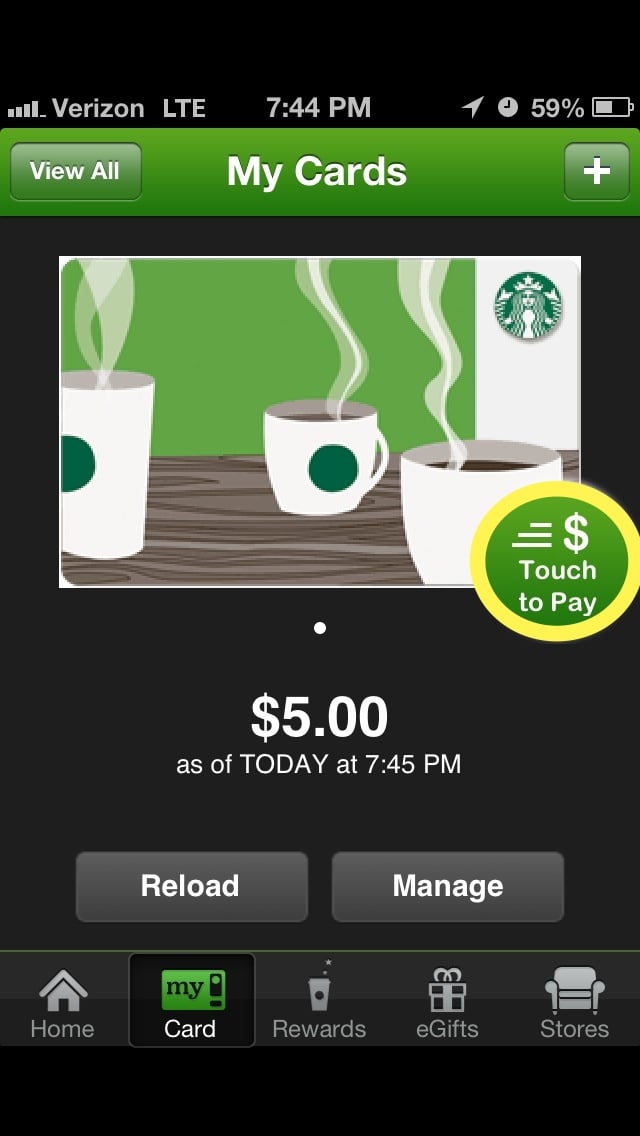
iOS 6 brings Passbook to the iPhone, allowing users to make payments at Starbucks without their wallet.
Passbook is a central hub for giftcards, coupons, tickets and other types of passes. The great thing about passbook is that all the items mentioned before are available right on the iPhone for easy access.
This helps get rid of the, “I forgot that dang giftcard again!” dilemma which happens far too often than necessary. Adding giftcards to Passbook is an easy process and this guide will instruct users how to add a Starbucks giftcard to Passbook.
Read: How to Use Passook in iOS 6
How to Add a Starbucks Giftcard to Passbook
To add the Starbucks giftcard to Passbook users need the Starbucks App from the App Store and a Starbucks giftcard. With those in hand, open the Starbucks app.

After the opening the app, Tap my Card.

If the user already has an account with Starbucks Select Sign In and if not choose Sign Up.

Enter the required information and when finished Select Continue.
After creating the account, enter the giftcard.
Tap my Card.
 Enter the Card number and 8 digit code then select Add in the top right corner.

Tap OK to add the Card to Passbook.

To pay from within the app Tap the Touch to Pay circle.
A card is displayed and it can then be presented in front of a scanner to redeem the gift card.

Once done using the card Tap the Green circle.
Another useful feature of the app is the option to add money to the card from the iPhone. To do this Tap Reload.

On the next screen enter the amount of how much to reload the card by.

To access the card from Passbook Tap Passbook.

The card from Starbucks should appear like so.

This is very convenient to use but if the card doesn’t appear by default here is how to manually add it.
Go to the Starbucks app. Select My Cards and then Tap Manage.

Tap Add card to Passbook.

After selecting this, reopen the Passbook app and the giftcard will appear.
To find nearby Starbucks stores to use the giftcard at Open the Starbucks app and Select Stores.

There is a Map view and also a List view to choose from to find the closest store. By tapping on one of the green push pins Favorite stores can be set as well for an easy way to find them. With the card added in passbook the giftcard should also appear on the lock screen when the user is near a Starbucks location.
