
How to
How to Take Screenshots on a Windows 8 PC
Microsoft’s decision to create a version of Windows that’s at home on laptops, tablets and 2-in-1s revolutionized the way millions of Windows users do everything from write messages to their friends to implying opening new apps and programs. Correctly embracing that change meant Windows needed to evolve and add multiple ways of doing the most common of those things. Take screenshots in Windows 8: there are multiple ways to do them and all are slightly better depending on which Windows 8 device a user is running.
Here’s how to take screenshots on a Windows 8 PC
Hardware Buttons
As Windows 8 now powers a horde of new form factors, it’s taking screenshots on devices that aren’t traditionally thought of as PCs that will likely confuse users the most. Take Microsoft’s Surface tablets for example. Users can connect these devices to a keyboard and mouse and take screenshots easily. They can also use the Windows snipping tool that’s described later in this how-to. All of that being said, these devices are also specifically designed for use without other attachments. It’s for that reason that these users can capture screenshots with their device’s hardware buttons.
To capture a screenshot with a Windows tablet or convertible that has hardware buttons place your finger on the Windows button and the Volume Down button at the same time.

Taking screenshots with hardware buttons works within the Desktop or Start Screen. Screenshots taken with hardware buttons are saved to your Windows device’s my pictures folder.
Taking Screenshots with Surface RT and Surface Pro Touch Cover and Surface Type Cover
Owners of Microsoft’s Surface RT, Surface 2, Surface Pro and Surface Pro 2 convertibles are slightly at a disadvantage. While nearly every other external keyboard offers the ability for users to take screenshots by just pressing the function and PRINTSCRN keys, Microsoft’s Surface Touch Cover and Surface Type Cover don’t have one. That isn’t to say that these users can’t take screenshots.
To take a screenshot on a Surface device with a Type or Touch Cover press the FN key, Windows Key and space bar all at the same time. You may need to hold it down for a bit. Your Surface’s screen will flicker once the screenshot has been taken. Screenshots taken in this way are saved to your Windows 8 device’s my pictures folder.

Taking Screenshots With Any PC using a Mouse and Keyboard
Have a traditional mouse and keyboard? You too have options to take a screenshot. Look for the PRNTSCRN key in the top right hand area of your keyboard. Now hold that key and the ALT key near the space at the same time to capture a screenshot.

Now navigate to the place you’d like to save that screenshot and hold down the CTRL and V keys on your keyboard.
Taking Screenshots with Any Windows Vista, Windows 7 and Windows 8 PC
One of the easiest ways to take screenshots in Windows is by using the Snipping Tool that every Windows operating system except Windows Vista Home Basic came equipped with.
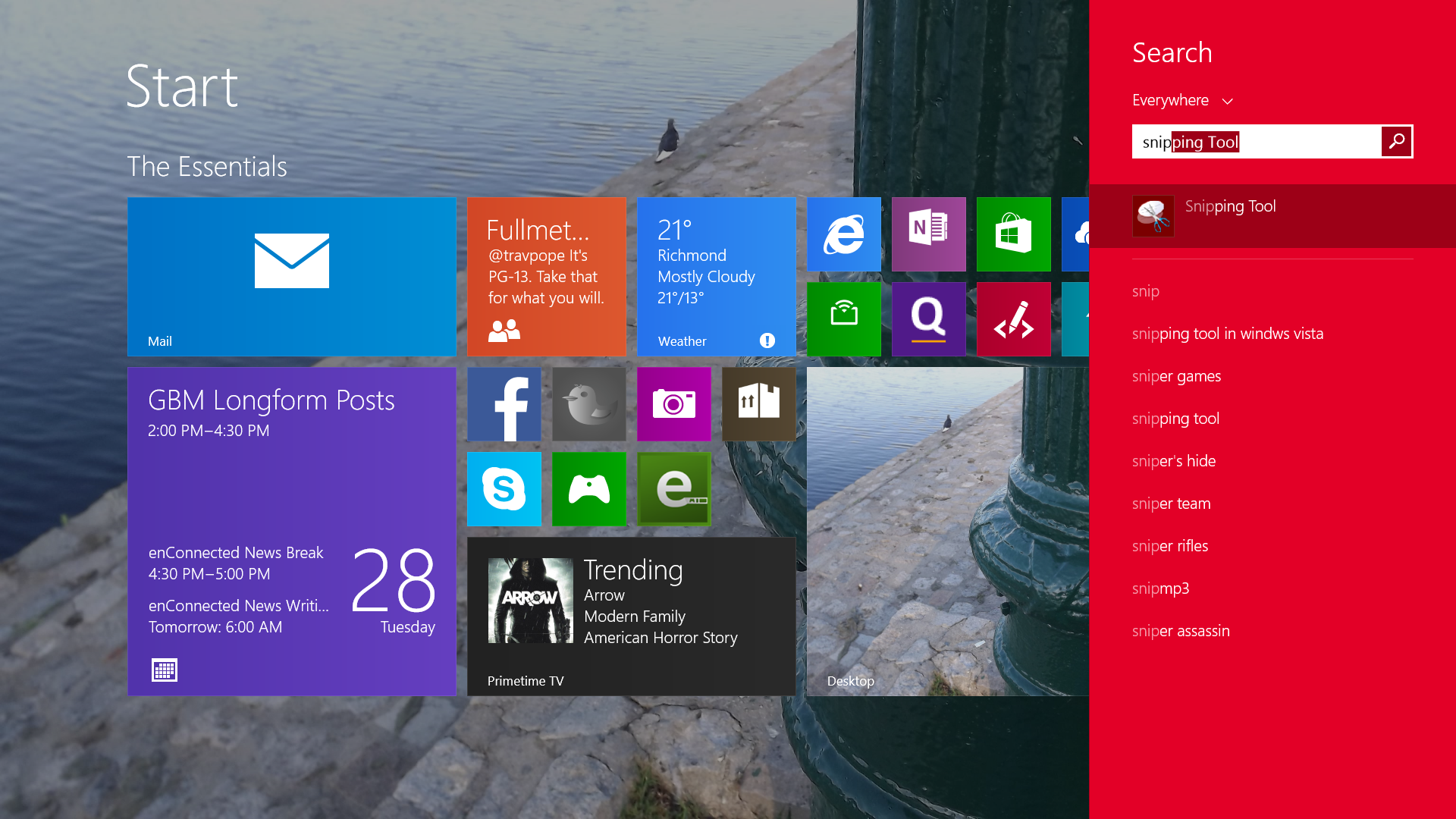
On your Windows 7, Window Vista or Windows 8 PC go to the Start Menu and type Snipping Tool into the search box. Then hit enter on your keyboard.

Users of Windows Vista and Windows 7 PCs should note that their Start Menu will look different.
Now select the type of screenshot you’d like to take from the Snipping Tool’s drop-down menu labeled New.

Once you’ve taken the screenshot select where you’d like to save it and Click on File. Next click Save.

That’s how to take a screen on every Windows PC. When taking screenshots its important to remember to not have any sensitive data, like your passwords or usernames, on your screen. Any sensitive information that is on your screen will also show up in your screenshot.
