How to
Why Your Wi-Fi Is Fast in One Room and Slow in Another (8 Fixes)
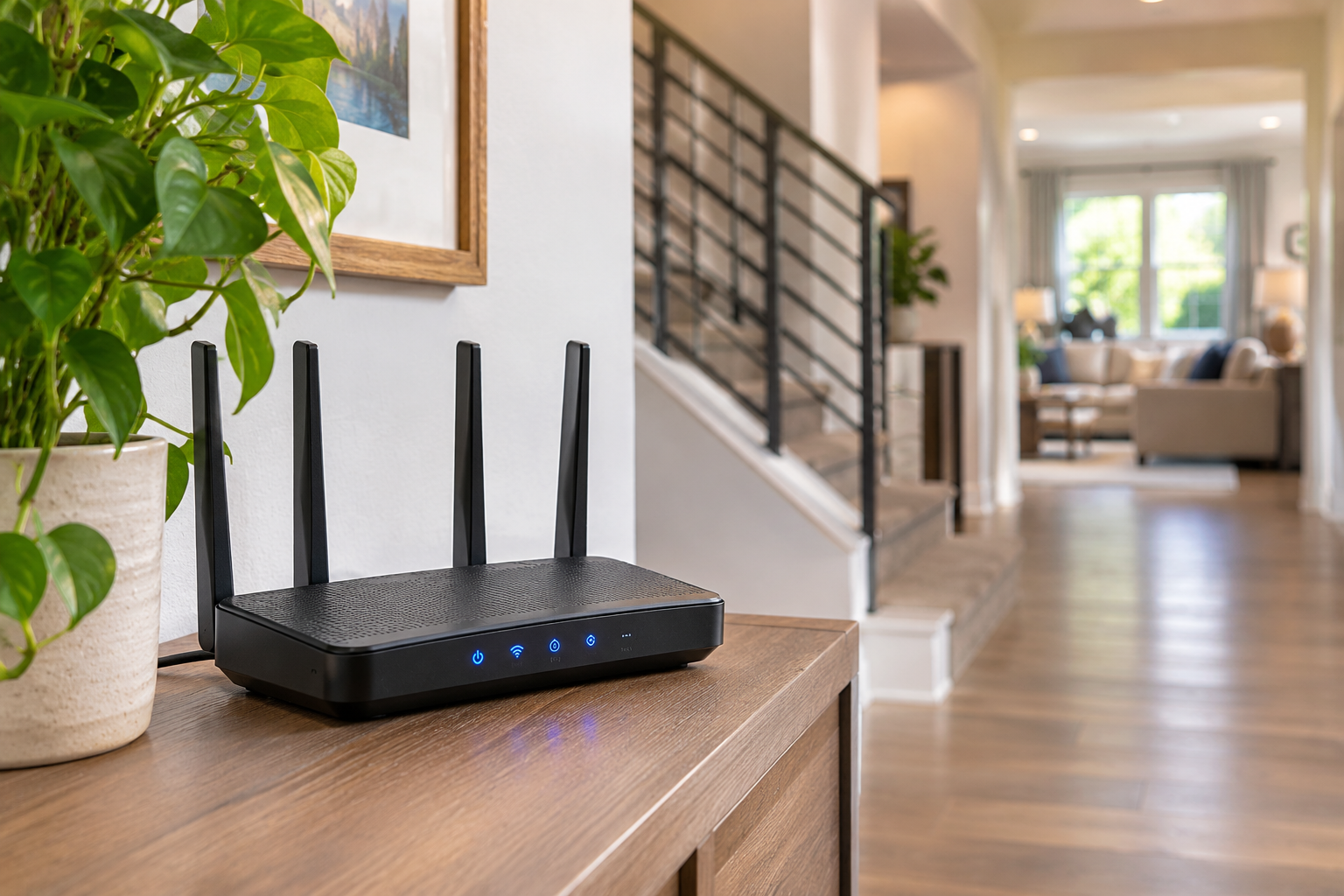
Your internet works perfectly in the living room, but the moment you walk into the bedroom, everything slows down.
Videos buffer. Websites take forever to load. Video calls freeze at the worst possible moment.
And somehow, the Wi-Fi router that works beautifully downstairs seems incapable of sending a reliable signal through one hallway.
If your Wi-Fi is slow in one room but fast in another, the problem probably isn’t your internet provider.
More often, it’s the way wireless signals travel through your home.
Walls, floors, furniture, interference and router placement can all affect your connection.
Before paying for a faster internet plan or replacing your equipment, try these eight fixes.
1. Move Your Wi-Fi Router to a Better Location
One of the biggest mistakes people make is hiding their Wi-Fi router.
It ends up behind the television, inside a cabinet, under a desk or tucked into a corner where nobody can see it.
Unfortunately, those locations aren’t always ideal for wireless coverage.
Wi-Fi signals spread outward from your router, and obstacles can weaken them.
For better coverage, try placing your router:
-
Near the center of your home
-
On an elevated shelf or table
-
Away from large metal objects
-
Outside enclosed cabinets
-
Away from major appliances
If you have a two-story home, consider positioning the router where its signal can reach both floors more effectively.
You don’t necessarily need to put it in the exact center of your house, but moving it out of a corner can make a noticeable difference.
2. Check What’s Between Your Router and the Slow Room
Wi-Fi signals don’t travel equally well through every material.
Drywall generally allows signals to pass more easily than concrete, brick or metal.
Some insulation materials, mirrors and appliances can also interfere with wireless coverage.
If your bedroom is separated from the router by several walls, a bathroom and a kitchen, the signal may have a difficult path.
Try testing your connection in the hallway outside the problem room.
If the signal improves dramatically just outside the doorway, the room’s location or construction may be contributing to the issue.
Moving the router or adding another access point may help.
3. Try a Different Wi-Fi Band
Many modern routers support multiple wireless frequency bands, including 2.4 GHz and 5 GHz. Some newer routers also support 6 GHz.
These bands have different strengths.
| Wi-Fi band | Main advantage | Main limitation |
|---|---|---|
| 2.4 GHz | Often better reach through obstacles | More interference and less available bandwidth |
| 5 GHz | Often faster at moderate distances | Signal weakens more through walls |
| 6 GHz | More spectrum for compatible devices | Generally shorter practical reach through obstacles |
If your router uses separate network names for different bands, try connecting to the 2.4 GHz network in the room with poor coverage.
You might sacrifice some maximum speed, but gain a more stable connection.
If your router automatically manages the bands, you may not need to change anything manually.
4. Restart Your Router
Sometimes a router simply needs a restart.
Temporary software problems or unusual network conditions can affect performance.
Unplug your router’s power cable, wait about 30 seconds and reconnect it.
Allow several minutes for the router to restart and restore its connections.
If you have a separate modem, follow your equipment manufacturer’s restart instructions.
Then test the connection in the room where you’ve been having trouble.
Restarting won’t fix poor router placement or thick concrete walls, but it’s an easy first troubleshooting step.
5. Check for Interference From Other Electronics
Your Wi-Fi network isn’t the only thing using wireless signals.
Bluetooth devices, neighboring Wi-Fi networks and some household electronics share portions of the radio spectrum.
Microwave ovens can interfere with nearby 2.4 GHz Wi-Fi connections while operating.
In apartment buildings and crowded neighborhoods, overlapping networks can also contribute to congestion.
If your router supports automatic channel selection, make sure it’s enabled.
You can also try relocating the router away from appliances and other electronics.
If your connection is consistently worse at certain times of day, congestion may be part of the problem.
6. Update Your Router’s Firmware
Your router runs software just like your phone or computer.
Manufacturers occasionally release firmware updates to address bugs, security vulnerabilities and performance problems.
Open your router manufacturer’s app or administration interface and check for updates.
Some routers install updates automatically.
If yours doesn’t, follow the manufacturer’s instructions carefully.
Don’t interrupt a firmware update once it begins.
And if your router is old enough that it no longer receives security updates, it may be worth considering a replacement.
7. Consider a Mesh Wi-Fi System
If you have a larger home, multiple floors or rooms far from the router, one wireless access point might not provide adequate coverage.
A mesh Wi-Fi system uses multiple units placed around your home to extend network coverage.
Instead of relying on one router to reach every corner, additional mesh nodes help distribute connectivity throughout the house.
For example, you might place:
-
The main router near your internet connection
-
A second mesh node in an upstairs hallway
-
Another node near a distant bedroom or office
Placement matters.
A mesh node needs a reasonably strong connection to the rest of the network. Putting it directly in a dead zone may not solve the problem.
Systems that use wired Ethernet connections between nodes can often provide more consistent performance than wireless-only connections.
Mesh isn’t automatically necessary for every home, but it can be useful when a single router can’t provide reliable coverage.
8. Test Your Internet Speed in Different Rooms
Before buying anything, figure out how much performance you’re actually losing.
Run an internet speed test near your router.
Then run the same test in the room where Wi-Fi feels slow.
Use the same device and testing service for both measurements.
For a more useful comparison, repeat the tests a few times under similar conditions.
If you’re getting 400 Mbps near the router but only 20 Mbps in the bedroom, you may have a wireless coverage or interference problem.
If speeds are poor everywhere, the issue could involve your internet service, modem, router or network congestion.
Remember that internet speed tests measure more than Wi-Fi performance alone. Results can also vary because of server conditions and other devices using your connection.
Why Is Wi-Fi Worse Upstairs?
In a two-story house, the router’s location can have a major impact on upstairs coverage.
Signals may need to travel through flooring, structural materials, plumbing and other obstacles.
The farther the signal travels, the more likely it is to weaken.
If your router is downstairs in a far corner, an upstairs bedroom on the opposite side of the house may receive a poor connection.
Moving the router to a more central location can help.
For larger homes, a properly positioned mesh node or wired access point may provide a more reliable solution.
Will a Wi-Fi Extender Fix a Dead Zone?
A Wi-Fi extender can help in some situations.
These devices receive an existing wireless signal and retransmit it to expand coverage.
However, the extender needs to receive a usable signal in the first place.
If you install it in a room where Wi-Fi is already extremely weak, the results may be disappointing.
Extenders can also reduce available throughput, depending on their design and how they communicate with the router.
For a small coverage problem, an extender may be enough.
For a large home with several weak areas, mesh Wi-Fi or additional wired access points may be a better long-term solution.
Does Faster Internet Fix Weak Wi-Fi?
Not necessarily.
Upgrading from a 300 Mbps internet plan to a 1 Gbps plan won’t automatically improve the wireless signal reaching a distant bedroom.
Your internet connection and your home’s Wi-Fi coverage are related, but they’re not the same thing.
If your router can’t deliver a strong signal to a particular room, paying for more internet speed may accomplish very little.
Fix the coverage problem first.
Then decide whether your household actually needs a faster internet plan.
When Should You Replace Your Router?
A new router isn’t always necessary.
But replacement may be worthwhile if your current equipment is several years old, lacks security updates or struggles with the number of devices in your home.
Consider upgrading if:
-
Your router no longer receives manufacturer security updates.
-
Wireless connections frequently drop throughout the house.
-
Your router doesn’t support the speeds your internet service can deliver.
-
You need better coverage across multiple floors.
-
Your existing equipment lacks features you need.
Before replacing it, check whether your internet provider supplied the router and whether a newer model is available.
FAQ
Why Is My Wi-Fi Fast in the Living Room but Slow in the Bedroom?
Distance, walls, floors, interference and router placement can weaken the signal reaching your bedroom. Testing speeds in different locations can help identify a coverage problem.
Does Wi-Fi Get Weaker Through Walls?
Yes. Wi-Fi signals can lose strength when traveling through walls and other building materials. Concrete, brick and metal can cause significant attenuation.
Is 2.4 GHz Better for Bedrooms Far From the Router?
Sometimes. The 2.4 GHz band often provides better reach through obstacles than higher-frequency bands, although it can experience more interference and generally offers lower maximum speeds.
Is Mesh Wi-Fi Worth It?
Mesh Wi-Fi can be useful in larger or multi-story homes where a single router doesn’t provide adequate coverage. Proper placement and a strong connection between nodes are important.
Should I Upgrade My Internet Speed to Fix Bad Wi-Fi?
Not until you’ve checked your wireless coverage. A faster internet plan won’t necessarily fix a weak Wi-Fi signal in one room.
The Bottom Line
If your Wi-Fi works perfectly in one room but struggles in another, don’t immediately blame your internet provider.
Start with router placement, wireless bands and interference.
Test your connection in several rooms to understand where performance drops.
For larger homes, a mesh system or additional access point may be the most effective solution.
The goal isn’t necessarily to buy faster internet.
It’s to make sure the internet you’re already paying for can actually reach the rooms where you need it.
This article may contain affiliate links. If you purchase through these links, we may earn a commission at no additional cost to you.
Helpful Products
Check this out on Amazon: TP-Link Deco Mesh Wi-Fi System
Check this out on Amazon: NETGEAR Wi-Fi Range Extender
Check this out on Amazon: TP-Link Gigabit Ethernet Switch