
Android
How to Disable Galaxy S9 Icon Notification Badges
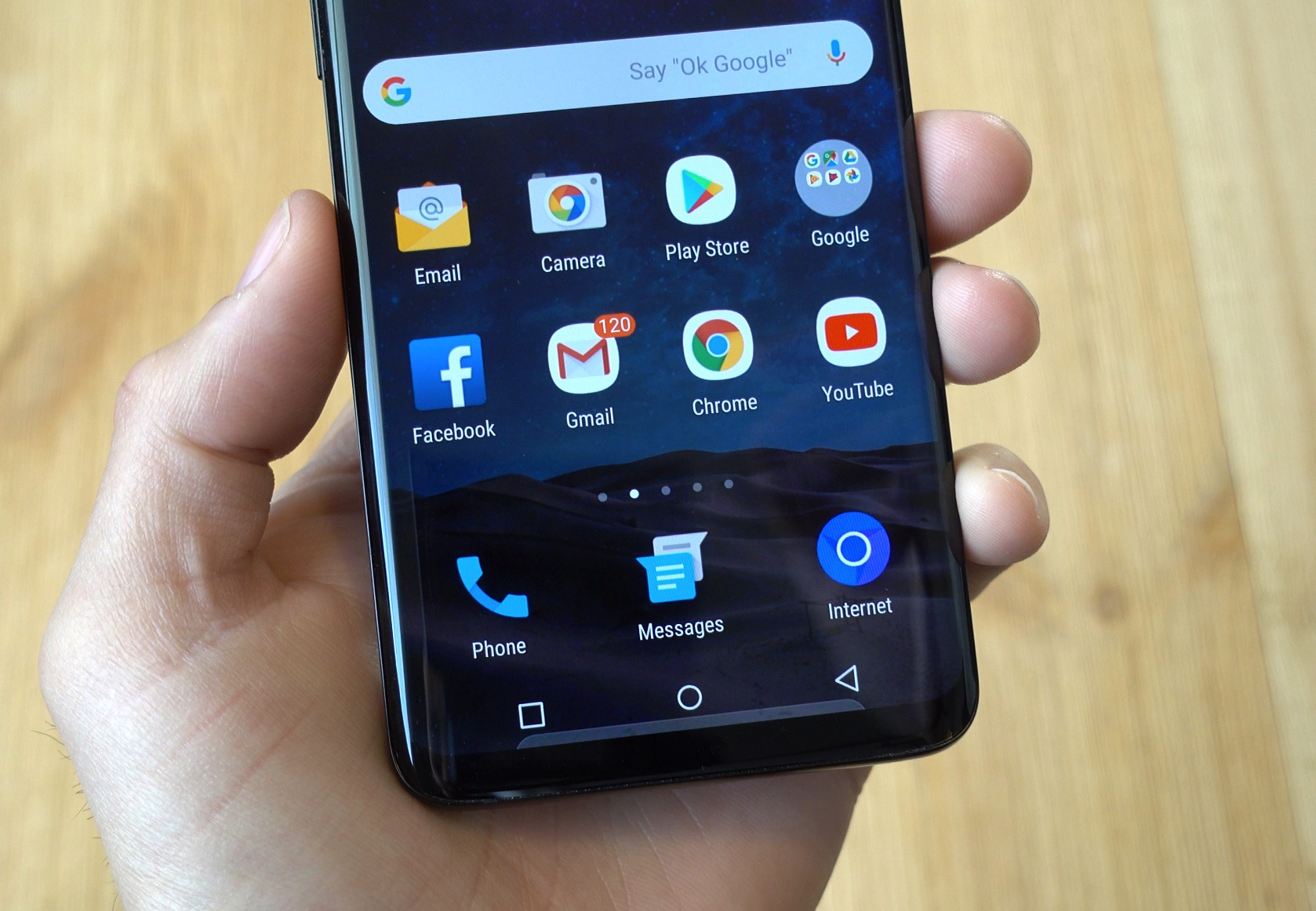
In this guide we’ll show you how you disable icon notification badges on the Galaxy S9. You either love them or hate them. We’re talking about those little red-orange notification dots on the screen. As messages, emails, and notifications come in, little orange dots appear on app icons with a number of unread notifications.
This is a feature a lot of users love, especially those coming from the iPhone. However, they’re also somewhat frustrating. They don’t work with all Android apps, so you’ll see the badge on some apps, and not others.
Read: How to Fix Bad Galaxy S9 Battery Life
In the past, these were incredibly hard to remove on Samsung phones. However, thanks to Android 8.0 Oreo on the Galaxy S9, it only takes a few taps in settings. Watch our quick video, or read the step-by-step instructions below and find out how.
As you can see from our video above these are extremely easy to change, customize, or disable completely. You can change the notification badges into dots, and get rid of the unread counter on the Galaxy S9. Or, simply turn the entire feature off and keep your screen clean. Here are step-by-step instructions for those that can’t watch the video.
Instructions
- Open Settings in the app tray, or by hitting the gear-shaped settings button in the pulldown bar
- Tap on Notifications
- On App Icon Badges, swipe the toggle switch to OFF

That’s it. We’ve successfully completely turned off the app icon notification badges and unread counters on the Galaxy S9 and Galaxy S9+. However, you can also tap on “App Icon Badges” for more options, instead of just turning it off.
Then, you can customize it a bit as you can see in our screenshot on the far right. Choose to get rid of the numbers and unread count, but keep a small dot for a visual reminder that you have missed notifications. That way you’re not seeing a huge orange badge on the screen, but you still have the indicator. This is a good middle ground, but it’s all a personal preference.
Go ahead and turn Galaxy S9 icon notification badges off and you’re all done. If at any time you want them back, just follow the steps above and flip the switch back to on. While you’re here, take a look at these 9 best Galaxy S9 screen protectors from the slideshow below.
[slides postid=433619]
