
Apple
How to Update from iOS 14 Beta to iOS 14
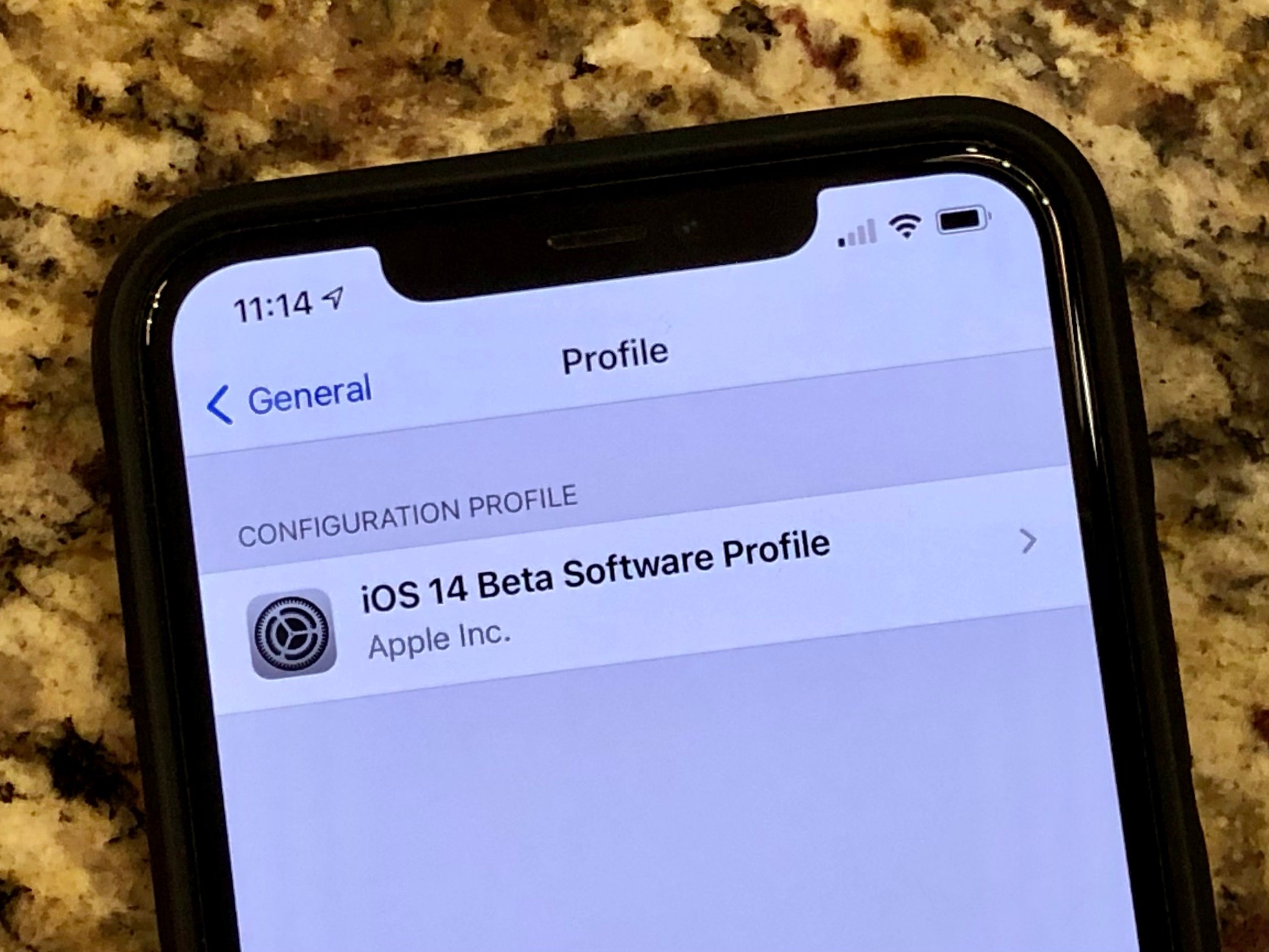
This guide shows you how to leave the iOS 14 beta and upgrade to the official iOS 14 release without worrying about getting the next set of iOS 14.0.1 and iOS 14.1 beta releases. If you are ready to go from the iOS 14 beta to the official iOS 14 update today, or from the iPadOS 14 beta to the official release, this is what you need to do.
This guide works to help you update from the iOS 14 beta to the official iOS 14 release. If you don’t do this, your iPhone or iPad will continue to install beta versions of iOS 14 for the next year.
Here’s how to remove the iOS 14 beta profile or iPadOS 14 beta profile and go to the official release. Before you switch from the iOS 14 beta to the official release, you should make sure you have a good backup in case anything goes wrong. If you’re trying to get off the iOS 14 beta and go back to iOS 13, use this guide.
You can do this on your iPhone or you can use your computer. Either method works the same and is pretty easy to complete.
How to Update from iOS 14 beta to iOS 14 on Your Phone or iPad

This is how to leave the iOS 14 beta.
The simplest way to update from the iOS 14 beta to the official release is on your iPhone or iPad. Grab your device and we can get started.
- Open Settings on your iPhone.
- Tap on General.
- Scroll and tap on Profiles.
- Tap the iOS Beta Software Profile.
- Tap Remove Profile.
- If needed enter your passcode and then tap on Delete.
- Shut down your iPhone or iPad and then restart it.
As soon as a new version of iOS 14 comes out, your iPhone or iPad will install it and you will be on the official version.
How to Update from iOS 14 beta to iOS 14 With iTunes or Finder
While it takes a little more time and a little more prep, you can do this on your Mac with iTunes. You’ll need a lightning cable, your Mac, and the iPhone or iPad.
- Turn your iPhone off.
- Plug it into your Mac and then press the Side and Volume Down button to enter Recovery Mode. Keep holding these until your iPhone boots into recovery mode.
- Click Update when your Mac pop’s up a message saying, “There is a problem with the iPhone…”
- Click Update again when it appears on the screen.
- When prompted, click Agree to the Terms and Conditions.
If you choose to update, you will keep all the information on your iPhone in place. If you choose Restore, it will wipe your iPhone completely and you will need to start over from scratch.
Once your iPhone installs the update and reboots you will be on the latest version of iOS 14 and off the beta.
[slides postid=482622]
