
Apple
How to Close Apps on iPhone 13
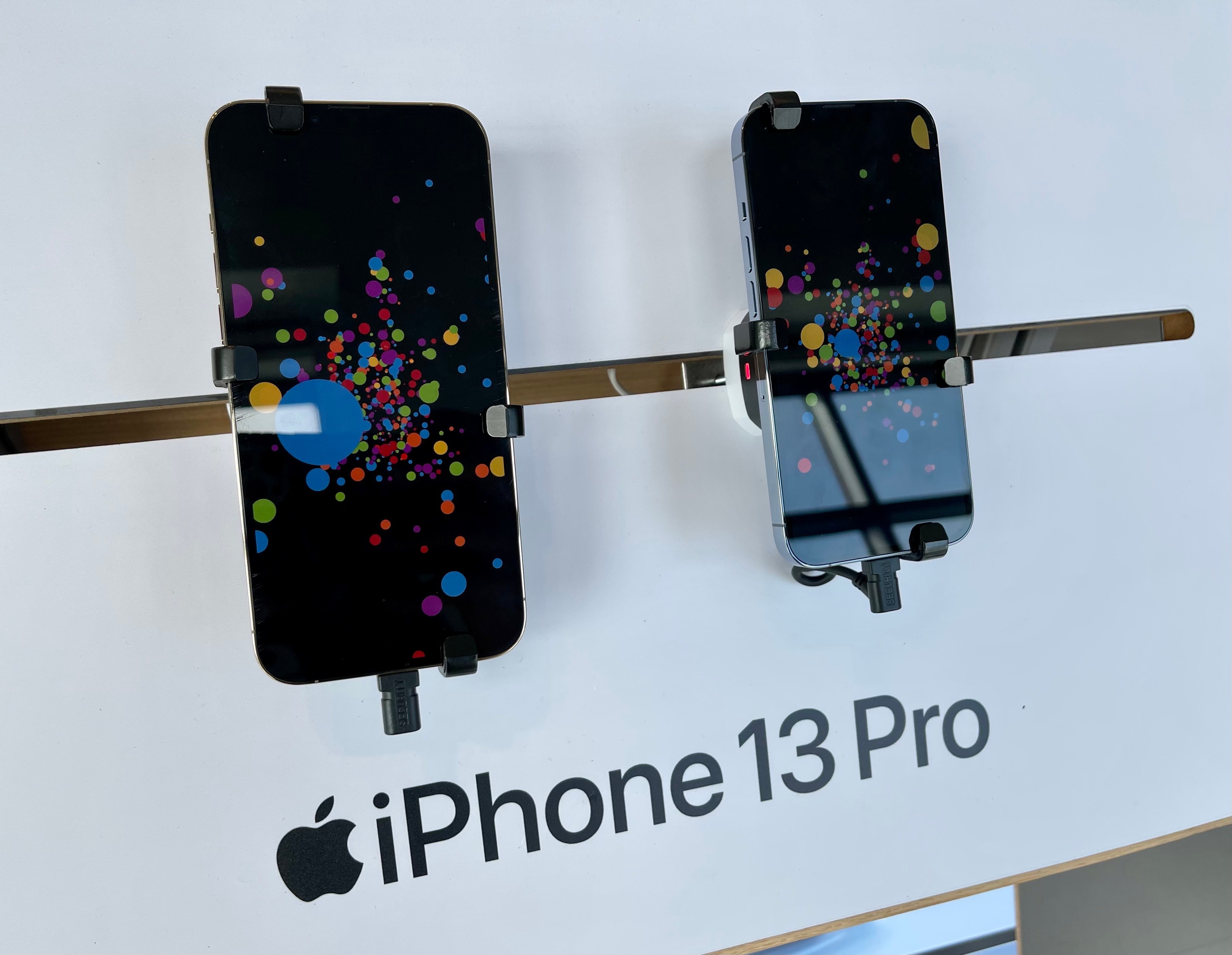
If you recently upgraded to an iPhone 13, iPhone 13 mini, iPhone 13 Pro, or iPhone 13 Pro from an iPhone model that’s older than an iPhone X, you may not know how to close applications on your phone.
If you previously owned an iPhone 8, iPhone 7, or an older iPhone, you’re used to closing applications with your device’s home button.
The iPhone 13 series, like the company’s iPhone 14 series, iPhone 12 series, iPhone 11 series, iPhone XS, iPhone XR, and iPhone X, doesn’t have a home button which means you have to use gestures to close your applications.

While this might feel awkward at first, it should only take you a day or two to get acclimated to the change. In this guide we’ll help you do that.
Here’s how you close apps on the iPhone 13, iPhone 13 mini, iPhone 13 Pro, and iPhone 13 Pro Max.
How to Close Apps on iPhone 13
In order to close your apps on an iPhone 13 you need to pull up the App Switcher function on your phone. Here’s how you do that:
- While you’re on your phone’s home screen or while you’re in an app, pull up from the bottom of the screen and hold for a second and then let go once you see the App Switcher and your app cards.
- In the App Switcher, you can scroll through the applications that are open on your iPhone 13 by swiping to the left and to the right.
- If you want to close an application, you simply need to swipe up from an app card.
Closing your applications may not improve your iPhone 13’s battery life, but it’s useful if you need to restart one or more of your applications. It could also improve your iPhone 13’s performance if you’re using the Background Refresh feature.
When Background Refresh is active, your apps will run in the background which could have an adverse effect on your device’s performance if you don’t manage it properly.
[slides postid=494792]
