
Apple
How to Force Restart or Hard Reset iPhone SE 3
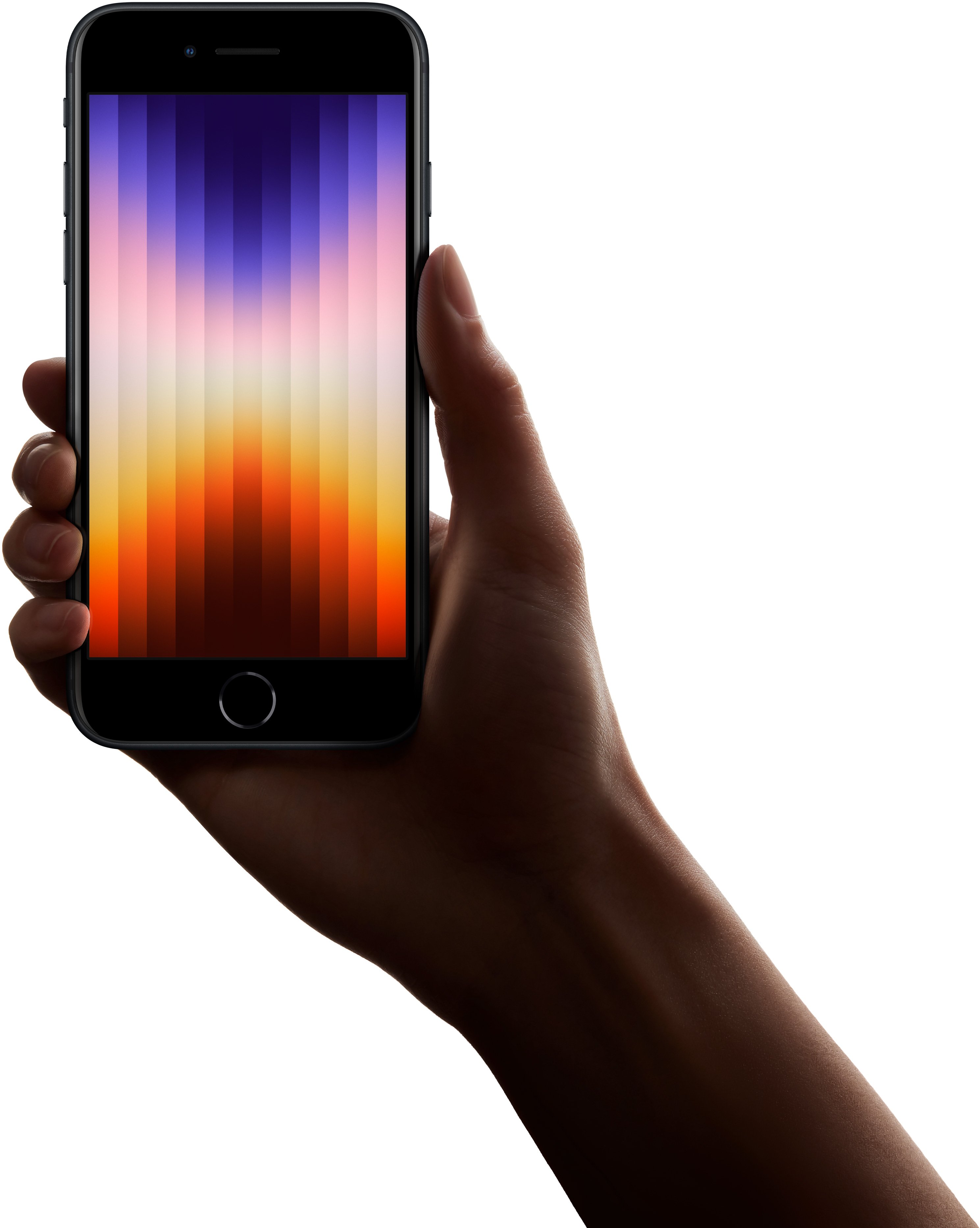
If your iPhone SE 3 suddenly stops responding, you’ll want to force it to restart which is also known as a hard reset.
If your iPhone SE 3 stops responding to gestures on the screen, you probably don’t need to bring it into an Apple Store or get in touch with customer service. In fact, you should be able to fix the problem in just a matter of minutes.
In order to get your device unstuck, you’ll need to perform a hard reset. The process takes less than a minute to complete and it should return your device to a normal state.
Hard resetting an iPhone is safe and it won’t wipe any of the data stored on board. It simply forces the device to restart and return to the lock screen.
If your iPhone SE 3 is locking up on a fairly regular basis, you may have a bigger problem on your hands. If that’s the case, you should try updating your applications and/or installing the most recent version of iOS 17. If you still run into the issue, it might be time to get in touch with Apple.
In this guide we’ll show you how to hard reset your iPhone SE 3. Once you get the hang of the button combination, you should be able to fix the issue without any assistance in the future.
How to Hard Reset iPhone SE 3
Hard resetting an iPhone SE 3 requires you to press buttons in a specific order. If you don’t do it exactly right, it won’t work and you’ll need to try again.

If your iPhone SE 3’s display isn’t responding to touches and swipes, here’s how to force restart it:
- Press on the Volume Up button located on the left side of the phone and let go.
- Press on the Volume Down button and let go.
- Press and hold the side button until the Apple logo appears on the screen.
Keep in mind, you need to press the volume up and volume down buttons quickly, but you don’t want to press them at the same time. The side button is what Apple calls the power button on newer iPhone models like the iPhone SE 3.
After a few seconds of holding down the side button, your phone should reboot. You can release your finger once you see the Apple logo on the screen.
If this process fails to fix your issue, Apple recommends plugging the phone into a charger to let it charge for up to an hour. We also recommend reseting all of your iPhone SE 3’s settings in the Settings app.
If you still see a black screen or you’re still having issues, you’ll want to get in contact with Apple’s customer support and see if they can’t help you remedy the issue.
[slides postid=501274]
