
Apple
How to Fix iPhone Screen Not Working
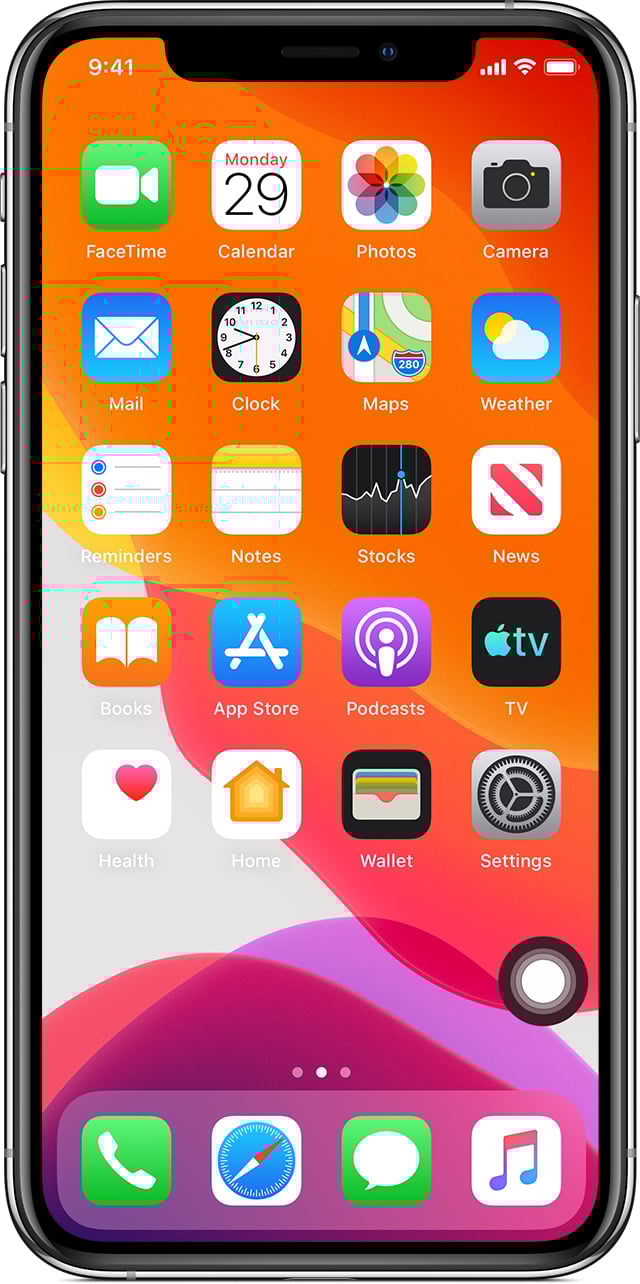
iOS 17 users are complaining about an issue where their iPhone’s screen stops responding to touches and gestures. Fortunately, in most cases, the problem can be fixed in seconds.

In the months since iOS 17’s release, we’ve continued to see complaints about iPhone screen issues. The issues seem to be impacting all versions of iOS 17, including iOS 17.3.1.
While many users say a hard reset resolves the problem, other iPhone users are saying the problem persists after a force restart.
Table of Contents
With that in mind, we want to outline alternative fixes for this issue in an effort to help iPhone users avoid a visit to the Apple Store.
Hard Reset
If the screen isn’t responding, users may not be able to shut down their iPhone the normal way. If that’s the case, try hard resetting the device.
A hard reset or force restart forces the iPhone to reboot. It requires a simple button combination and it could resolve touch screen issues.
Note that a hard reset doesn’t wipe any data, it simply reboots the phone.
Clean the Screen
If a hard reset doesn’t help, try cleaning the screen. If the screen has debris and/or water on it, it may not respond to touches and gestures.
Remove Case & Screen Protector
If applicable, we also recommend removing screen protectors and cases and see if they might be interfering with the iPhone’s screen.
Screen protectors, old ones in particular, can cause problems with an iPhone’s touch screen. Try using a new screen protector if one is available. If not, retailers like Amazon sell them.
Disconnect Accessories
Lastly, iPhone users experiencing this issue should disconnect accessories utilizing the device’s Lightning port or the USB-C port if the device in question is an iPhone 15.
If the iPhone’s screen starts working normally after removing the accessory, users should try using a different outlet, cable, or charger.
If none of the following fixes work, get in touch with Apple as it may want to setup a way to service the device.
[slides postid=501274]
