How to
Why Your Bluetooth Keeps Disconnecting and How to Fix It
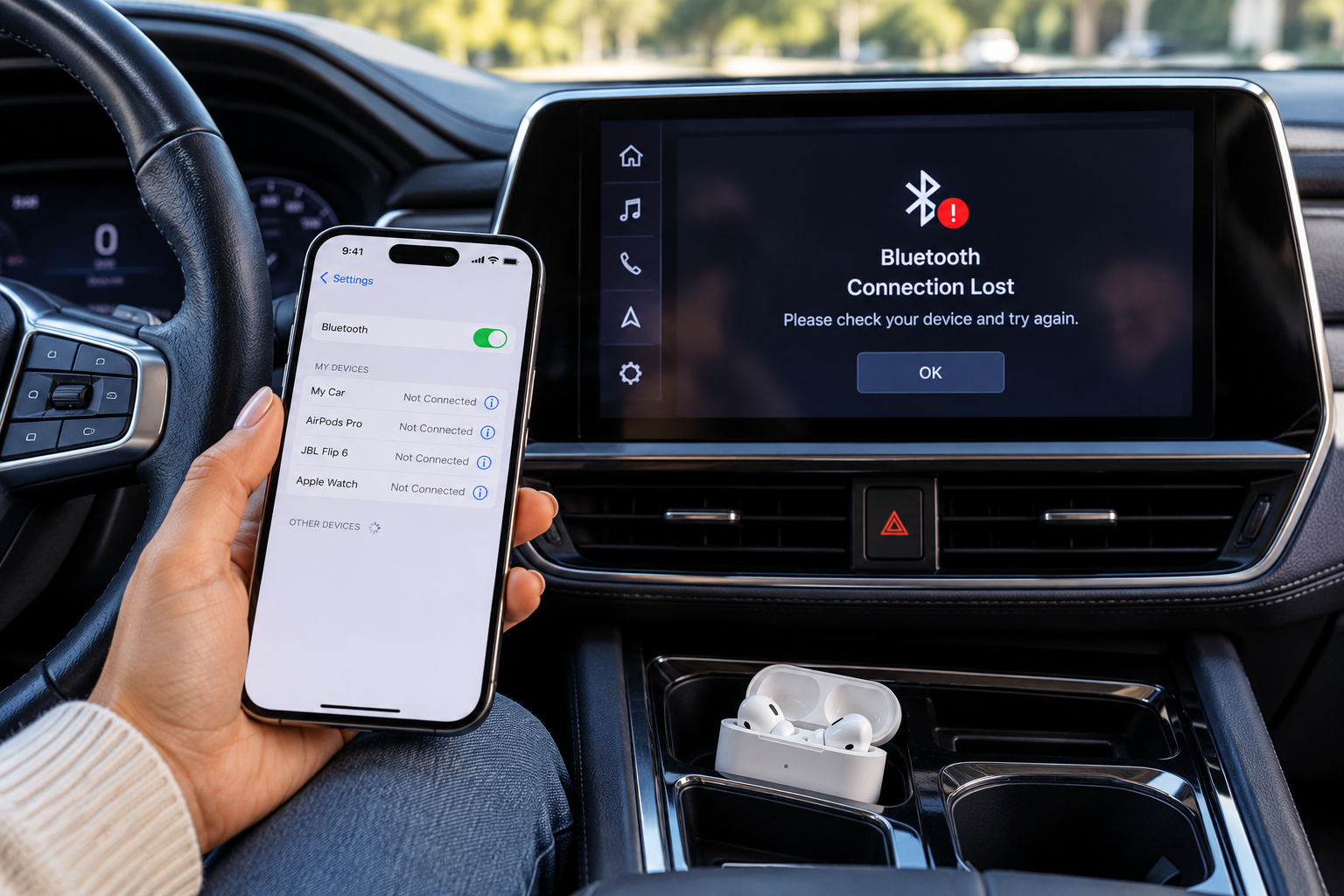
You’re listening to music, talking through your car’s speakers or using wireless earbuds when suddenly the sound cuts out.
Your Bluetooth connection disappears, reconnects and sometimes drops again a few minutes later.
If your Bluetooth keeps disconnecting, the good news is that you probably don’t need to replace your phone, headphones or car stereo.
Bluetooth connection problems can happen for several reasons, including wireless interference, outdated software, low batteries and problems with previously paired devices.
Here are 10 things worth trying before spending money on new equipment.
1. Turn Bluetooth Off and Back On
Start with the simplest fix.
Sometimes your phone and Bluetooth accessory just need to establish a fresh connection.
On an iPhone:
-
Open Settings.
-
Tap Bluetooth.
-
Turn Bluetooth off.
-
Wait about 10 seconds.
-
Turn Bluetooth back on.
On Android:
-
Open Settings.
-
Find Connected devices, Connections or Bluetooth.
-
Turn Bluetooth off.
-
Wait a few seconds.
-
Turn it back on.
The exact menu names vary between Android manufacturers.
Reconnect your headphones, speaker or car and see whether the connection stays stable.
On an iPhone, use Settings rather than the Control Center Bluetooth button if you want to fully turn Bluetooth off.
2. Restart Your Phone
It’s not exciting advice, but restarting your phone can clear temporary software problems affecting wireless connections.
Turn your phone completely off, wait a few seconds and restart it.
Once it’s running again, reconnect your Bluetooth device.
If your headphones or speaker have their own power button, restart those too.
Sometimes both devices need a fresh start.
3. Check the Battery on Your Bluetooth Device
Wireless headphones, earbuds and speakers can behave unpredictably when their batteries are running low.
Depending on the accessory, a low battery may cause interruptions, unexpected shutdowns or connection problems.
Charge your Bluetooth accessory fully and test it again.
If you’re using wireless earbuds, make sure both earbuds are charging properly inside their case.
One earbud failing to charge can create problems that initially look like a Bluetooth connection issue.
4. Move Closer to Your Bluetooth Device
Bluetooth has a limited wireless range.
Walls, furniture, your body and other obstacles can weaken the connection between your phone and accessory.
If your Bluetooth keeps disconnecting when you walk into another room, distance may be the problem.
Try using your headphones or speaker while standing near your phone.
If the connection becomes stable, gradually move farther away.
This can help you determine whether you’re dealing with a range problem rather than a software issue.
5. Watch for Wireless Interference
Bluetooth shares the crowded 2.4 GHz wireless spectrum with many other devices.
Wi-Fi equipment, other Bluetooth accessories and some household electronics can interfere with Bluetooth signals.
You might notice problems when you’re near a busy wireless environment or when several devices are operating close together.
Try moving away from nearby electronics and testing your Bluetooth connection somewhere else.
If the problem happens only in one particular location, interference becomes a more likely explanation.
6. Forget the Device and Pair It Again
This is one of the most useful fixes when a Bluetooth accessory repeatedly disconnects.
Instead of reconnecting to the existing saved pairing, remove the device and establish a new connection.
On an iPhone:
-
Open Settings > Bluetooth.
-
Find the accessory.
-
Tap the information button next to its name.
-
Select Forget This Device.
-
Put the accessory into pairing mode.
-
Pair it with your iPhone again.
On Android:
-
Open Settings > Connected devices or Bluetooth.
-
Find the accessory.
-
Open its settings.
-
Choose Forget or Unpair.
-
Put the accessory into pairing mode.
-
Connect it again.
If you’re using a car stereo, you may also need to remove your phone from the vehicle’s saved-device list.
7. Check Whether Another Device Is Taking Over
Some Bluetooth accessories can connect to multiple devices or automatically switch between them.
This is convenient until your headphones decide your laptop is more interesting than your phone.
If your earbuds keep disconnecting while you’re working near a computer or tablet, another paired device may be taking over the connection.
Temporarily disable Bluetooth on nearby devices and test your headphones again.
If the problem disappears, review the accessory’s multipoint or automatic-switching settings.
Not every Bluetooth accessory supports these features, but they’re worth checking if yours does.
8. Update Your Phone and Bluetooth Accessory
Software updates can fix bugs affecting Bluetooth stability.
On an iPhone, check:
Settings > General > Software Update
On Android, look for Software update or System update in Settings.
Also check whether your Bluetooth accessory has a companion app.
Some headphones, speakers and car systems receive firmware updates that improve compatibility and connection reliability.
Install available updates from the manufacturer, then test the connection again.
9. Reset Your Bluetooth Accessory
If your headphones or speaker still won’t maintain a connection, the accessory itself may need to be reset.
Many wireless earbuds and speakers have a reset procedure that clears saved connections and restores their pairing settings.
The exact steps depend on the manufacturer and model.
Check the manufacturer’s instructions before proceeding.
After resetting the accessory, pair it with your phone again and see whether the problem continues.
Be aware that resetting the accessory may erase its saved pairings and custom settings.
10. Reset Your Phone’s Network Settings
If Bluetooth problems affect several different accessories, the issue may be with your phone rather than any individual device.
A network settings reset can sometimes resolve persistent wireless connection problems.
On an iPhone, go to:
Settings > General > Transfer or Reset iPhone > Reset > Reset Network Settings
This resets network-related settings, including saved Wi-Fi networks and passwords, cellular settings, and certain VPN and Bluetooth configurations.
On Android, search Settings for Reset options or Reset Bluetooth and Wi-Fi.
The available options vary by manufacturer.
Only try this after the simpler fixes because you’ll likely need to reconnect to Wi-Fi networks and pair Bluetooth accessories again.
Why Does Bluetooth Keep Disconnecting in Your Car?
Car Bluetooth problems can be especially frustrating because they often happen during calls or while listening to directions.
If Bluetooth disconnects only in your vehicle, start by removing the pairing from both your phone and the car’s infotainment system.
Then pair them again.
Also check whether your vehicle has a software update available.
Some car manufacturers provide infotainment updates that address connectivity problems.
If you’re using wireless Apple CarPlay or Android Auto, remember that those systems may also rely on Wi-Fi. A wireless CarPlay or Android Auto disconnection isn’t necessarily caused by Bluetooth alone.
Try connecting another phone to the vehicle.
If multiple phones experience the same problem, the vehicle’s system becomes a more likely suspect.
Why Do Bluetooth Headphones Keep Cutting Out?
Wireless headphones can experience brief audio interruptions even when they don’t fully disconnect.
This can happen because of interference, distance, connection switching or problems with the headphones themselves.
Try keeping your phone close to the headphones and testing them somewhere with fewer nearby wireless devices.
If your headphones support connecting to two devices simultaneously, temporarily disable that feature.
You can also test the headphones with another phone.
If the same interruptions happen on multiple phones, the headphones may be the problem.
How to Tell Whether Your Phone or Bluetooth Device Is the Problem
The easiest way to narrow down the issue is to test different combinations.
Connect your phone to another Bluetooth accessory.
Then connect the original accessory to a different phone, if possible.
If your phone disconnects from every Bluetooth device, investigate your phone’s software and network settings.
If one particular accessory disconnects from multiple phones, focus on that accessory.
If the problem happens only when a particular phone and accessory are paired together, you may be dealing with a compatibility or pairing issue.
This simple test can save you from replacing perfectly functional hardware.
When Is It Time to Replace Your Bluetooth Device?
Not every Bluetooth problem can be fixed with settings.
If your headphones or speaker continue disconnecting after a reset, firmware update and testing with multiple phones, there may be a hardware problem.
Before replacing anything, check whether the device is still covered by its manufacturer’s warranty.
And if your phone is having several different problems, not just Bluetooth, our guide to Don’t Buy a New Phone Right Now Without Checking These 7 Things can help you decide whether an upgrade is actually worthwhile.
FAQ
Why Does My Bluetooth Keep Disconnecting Randomly?
Common causes include wireless interference, weak signals, low accessory batteries, outdated software and problems with saved pairings. Testing your device in another location and pairing it again can help identify the cause.
Why Does My Bluetooth Disconnect Even When My Phone Is Nearby?
Distance isn’t the only cause of Bluetooth problems. Interference, software bugs, multipoint switching and accessory hardware issues can also interrupt a connection.
Does Resetting Bluetooth Delete Anything?
Forgetting a Bluetooth device removes its saved pairing. Resetting network settings can affect saved Wi-Fi networks, passwords and other network configurations, depending on your phone.
Why Does Bluetooth Keep Disconnecting in My Car?
Possible causes include outdated infotainment software, pairing problems, competing connections and compatibility issues between the phone and vehicle.
Can Wi-Fi Interfere With Bluetooth?
Yes. Bluetooth and some Wi-Fi networks use the 2.4 GHz frequency band. Although they’re designed to coexist, crowded wireless environments can sometimes contribute to interference.
Helpful Products
Check this out on Amazon: Anker Soundcore Bluetooth Speaker
Check this out on Amazon: UGREEN Bluetooth 5.3 USB Adapter
Check this out on Amazon: Bluetooth AUX Receiver for Cars
This article may contain affiliate links. If you purchase through these links, we may earn a commission at no extra cost to you.