
Apple
12 Common Apple TV Problems & How to Fix Them
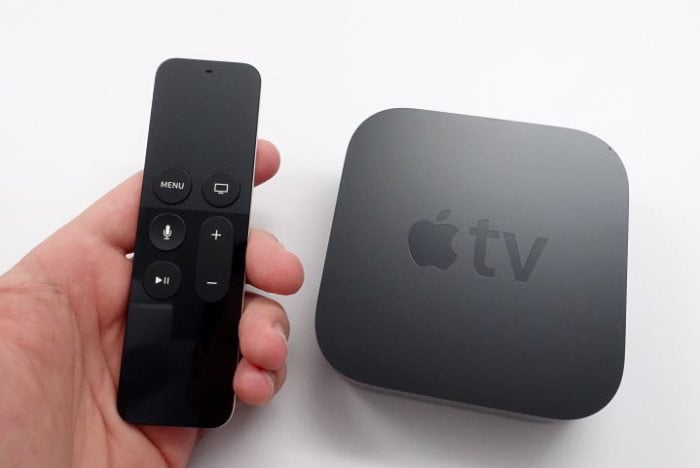
Sometimes the Apple TV is sluggish, apps don’t work, or WiFi is slow after installing an update. Problems often seem to materialize out of thin air.
Sometimes the Apple TV is sluggish, apps don’t work after a firmware upgrade, or WiFi is slow after installing an update. Problems may also seem to materialize out of thin air.
Table of Contents
If you are experiencing similar issues, you can try some of the fixes below, but you may need to wait for Apple to issue a fix in a software update down the road.
Fix Apple TV Problems Fast
If your Apple TV is acting up the first thing to try is restarting it. This can solve slow performance and some other odd issues. It’s fast and can fix many issues.
- On the remote press and hold Menu and Home until the light on the front of the Apple TV blinks fast.
- Go to Settings -> System -> Restart
- Unplug the power cord for 15 seconds.
You can use any of the methods above to restart your Apple TV.
Fix Apple TV Glitching
If your Apple TV starts glitching, for instance we’ve run into a problem where apps and content start flickering, try restarting the Apple TV.
If you’re using an Apple TV 4K, you’ll want to check your HDMI cable. If you’re using a low quality HDMI cable, it may not be able to handle the speeds needed for 4K content.
If that’s the case, you’ll need to buy a new one.
Fix Frozen Apple TV
If your Apple TV suddenly goes to a gray screen or becomes frozen, you can fix this by force closing the app you’re using.
- Double tap the home button.
- Select the app.
- Swipe Up.
Repeat as needed to close other apps. We have to do this almost daily on the Apple TV to fix frozen or laggy apps.
Fix Apple TV WiFi Problems
Apple TV WiFi problems are one of the most common issues that you will experience. This could easily be related to your home WiFi network or it could be that your Apple TV is too far away.

Common Apple TV WiFi problems include:
- Can’t find WiFi network
- Unable to join WiFi network
- Can’t access the Internet on Apple TV
- Frequent disconnects and buffering.
To fix these problems, first, navigate to Settings > Network and see if an IP address is showing up. If there is no IP address you need to turn your router off for a minute and to restart your Apple TV.
To restart your Apple TV, navigate to Settings > System > Restart. To power cycle your router, unplug it from power, wait 60 seconds, and then plug it back in.
In cases where your Apple TV connects to WiFi, but it is not staying connected or constantly waiting to download more of a show you may have a poor signal.
You may need to move the Apple TV out of a cabinet or move your router closer. You may also need to look for a whole home WiFi system.
Fix Apple TV AirPlay Problems
AirPlay lets you stream your iPhone, iPad, or MacBook screen to your TV. It’s an awesome way to use the TV as a display when it works. This is a useful tool, but one that can cause many problems.
The first thing to do if you cannot use AirPlay is to make sure your iPhone and Apple TV are on the same network. If you connect to a different one by accident or your iPhone is on cellular it will not work.
Go to Settings and see if your home WiFi network shows up on both of your devices.

Another issue is that you may not see the AirPlay logo in the video app you want to stream. If that is the case, the app may not support AirPlay.
This is common in some sports apps and in some TV apps where the company doesn’t allow you to watch on a larger screen.
If that’s not the case, check your Apple TV settings. You can also check to see if AirPlay is enabled on your Apple TV by heading to Settings > AirPlay and make sure that the feature is turned on.
In cases where AirPlay stutters or lags, it could be that your iPhone is too far from the Apple TV or that the lag is related to streaming instead of to AirPlay.
Fix Apple TV Video Problems
If you cannot stream content from apps or there are other video problems you aren’t alone. Occasionally you may see video without audio or audio without the video showing.

Before you take any drastic options, restart the stream. This may fix the issue in just a few seconds. If that doesn’t work, make sure the HDMI cable is connected on both ends and if possible, try a different HDMI cable.
You can also check the Apple TV resolution. To change the resolution that your Apple TV displays, navigate to Settings > Audio and Video > Resolution.
Most users will see it set to Auto. This works in most cases, but you can also change it to the resolution your TV supports.
Fix Apple TV Audio Problems
When it comes to Apple TV audio problems there is an easy solution to start with. Just as with video issues, restart the stream before you do anything else.

Double-check your connections to the Apple TV and your TV. This could be HDMI or it could be an optical cable. Make sure these are all connected, including connections to an audio receiver or sound bar.
You may want to switch inputs to see if your Apple TV audio comes back. Of course, you should also check that your volume is turned up and the TV is not muted.
Fix Apple TV Remote Problems
The Apple TV remote is certainly a key part of using the Apple TV. When you have remote problems, you may not be able to use the Apple TV.
This is why it’s a good idea to set up the iPhone Remote App to control your Apple TV.

If your Apple TV remote problem can no longer pair, make sure the remote is charged for 30 minutes. Then put your remote within 3-inches of the Apple TV and hold the volume up and menu button for five seconds to pair.
Once this is done, unplug the Apple TV from power for seconds. Plug it back in and then try your remote again.
If the Apple TV remote touch area is too sensitive, you can dial it down. Go to Settings -> Remotes and Devices -> Touch Surface Tracking -> Pick a slower speed.
Fix Receiver Rebooting When Using Apple TV
If your receiver keeps rebooting when you are using the Apple TV, mostly when watching YouTube, you can fix this on your own.
Go to Settings -> Audio & Video -> Audio -> Auto to Dolby.
This can fix the reboot issues. You can also check to see if your receiver has any available updates that might solve this problem by connecting it to WiFi.
Fix Apple TV Light Blinking Rapidly
When the Apple TV light flashes quickly there is something wrong with the Apple TV hardware.
When the light flashes for more than three minutes you will need to restore your Apple TV. Here are directions on how to restore the Apple TV.
Before you do that, you may want to try unplugging the Apple TV for one minute. This can allow some issues to reset and let you get back to watching without a full reset.
Fix Apple TV Black Bars and Screen Issues
If you see black bars around your Apple TV picture on your TV, you may need to adjust the settings on your TV. Most of the time this happens when your TV is not set to 16 x 9 aspect ratio.
You will need to check your TV settings and look for an option to adjust the picture size or aspect. Switch to 16 x 9 and you will be good.
Fix Apple TV Out of Space Error
While you will stream most of your content to the Apple TV, you can run out of space if you install too many apps, or if it is caching a lot of movies or shows.
The best thing to do is to clear out apps that you aren’t using anymore. Go to Settings -> General -> Manage Storage.
Find an app that you don’t use anymore and delete it. You can always re-download from the app store later without paying for it again.
