
Apple
How to Fix iMessage Syncing Issues
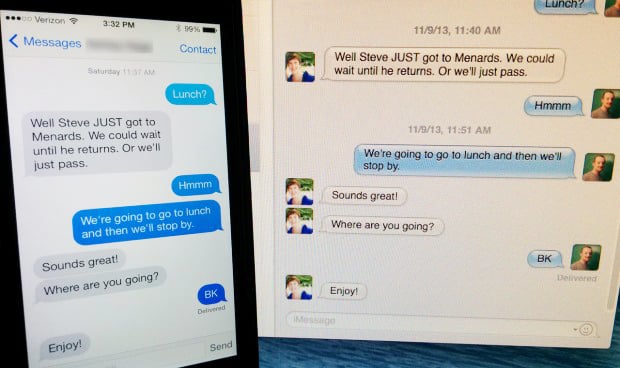
Here’s how to fix iMessage syncing issues between your iOS and Mac devices. This will help you see the same messages and notifications across your iPhone, iPad and Mac.
There are many iOS 11 problems, including some iMessage syncing issues in iOS 11.4.1. We’ll help you fix iMessage syncing problems on iPhone, iPad and Mac, including how Messages in iCloud might help you.
One of the most common problems with iMessage is syncing new messages and read messages across all of your devices.

If you are running into problems with iMessage syncing correctly, you can follow these directions to fix syncing errors and issues.
Set Up iMessage Correctly
One common issue that can prevent iMessage syncing correctly is iMessage not being set up correctly.
iMessage will sync with all of your Apple devices as long as you sign in with the same Apple ID and turn it on in settings. Follow these steps to properly set up iMessage.
- On your iPhone and/or iPad, open up the Settings app.
- Tap on Messages.
- Tap on Send & Receive.

- Make sure your email address shows up at the top next to Apple ID. If not, tap on this and sign in with your Apple ID.
- Also, make sure your main phone number is selected under the section titled Start New Conversations From.
Do this on all of your iPhones and iPads. This is what you need to do to be able to send and receive iMessages between all of your Apple devices.
Read: 3 Common iMessage Problems & How to Fix Them
To set up iMessage on Mac, follow these simple steps.
- Open up the Messages app.
- Click on Messages in the menubar in the top-left corner and then select Preferences (or just hit Cmd + comma on your keyboard).
- Next, click on the Accounts tab and you should see your Apple ID email address in the sidebar. If not, click on the + sign at the bottom and add your Apple ID.

- Once added, click on it and you’ll see some similar settings that you did on your iOS device. Simply make sure that Enable this account is checked, along with your phone number further below.
- At the bottom of the Preferences pane, make sure your phone number is selected from the dropdown menu under Start new conversations from.
After that’s set up, you should be good to go, and any iMessages you receive on your iOS device will also show up on your Mac, and vice versa. However, if you’re still having problems, there’s a quick fix.
Turn Off iMessage & Turn It Back On
If iMessage is set up correctly, but you still have syncing issues, you can try this quick fix. This essentially resets iMessage which is the equivalent of turning it off and back on again. .
Essentially, you’re just disabling iMessage on all your iOS and Mac devices that have iMessage, and then re-enabling it on each device one at a time.

To do this on your iOS devices, go to Settings > Messages and toggle iMessage off on all of these devices. On Mac, you’ll open up Messages and then click on Messages > Preferences > Accounts. From there, uncheck Enable this account and close out of Messages and then open it back up.
At that point, go back to your iOS devices and re-enable iMessage, and then head to your Mac and do the same thing. Give it a few minutes for your devices to communicate with each other and eventually iMessage will be ready to go. From there, you shouldn’t have anymore problems.
Turn On Messages in iCloud
A new feature introduced in iOS 11.4 can help you solve iMessage syncing issues and problems. This will also help free up storage on your iPhone or iPad by saving messages and photos in iCloud.
To do this, read this guide, which will help you set up this new feature on your iPhone, iPad and Mac.
Additional reporting by Craig Lloyd.
[slides postid=439950]
