
Apple
How to Fix Verification Failed: Error Connecting to Apple ID Server Problems
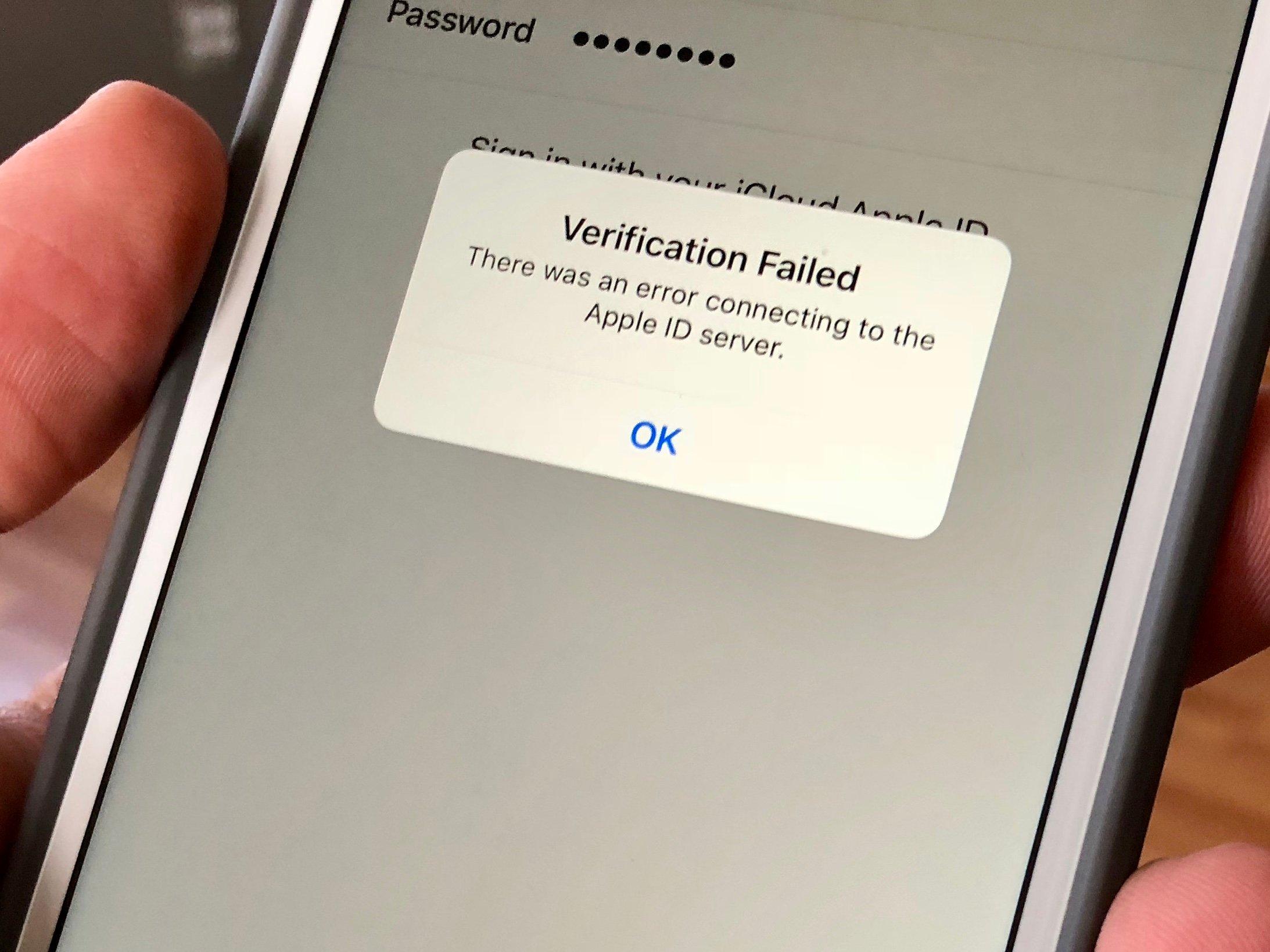
This guide will show you how to fix the Verification Failed: There was an error connecting to the Apple ID Server error on your iPhone or iPad. You may see this while setting up a new iPhone or when trying to install an iPhone update.
We’ve seen this most recently while setting up the iPhone 8 Plus and installing an iOS 11 update, but you can see it on any iPhone or iPad. In most cases there are ways you can fix this quickly, but you will need access to another WiFi network or to a computer depending on when you are seeing it.

How to fix the annoying Apple ID Server error on iPhone or iPad.
Here’s what to do when you keep getting the Verification Failed Error when trying to connect to the Apple ID Server on your iPhone or iPad. Try these four steps before you bother talking to Apple, since they will just tell you the same thing after a long hold;
- Restart the iPhone or iPad
- Restart your Router and Modem
- Try another WiFi Network
- Update Your iPhone with iTunes
In many cases restarting your iPhone and your router or modem won’t work, but now and then it will solve the issue. We have not had any success turning WiFi off and trying to use LTE to finish setup or find the update.
Try Another WiFi Network
When setting up an iPhone 8 we saw the Apple ID Server error and we were able to fix it by connecting to a different WiFi network and completing the setup. This took just a few minutes and was a simple fix. The troublesome network is a TP Link router and there are many threads suggesting turning all kinds of settings on and off to make the iPhone work with TP Link routers, but this isn’t the only cause of the problem.
Update With iTunes

The same phone couldn’t install the iOS 11.0.2 update on the home WiFi network. When checking for an update we saw the Verification Failed: There was an error connecting to the Apple ID Server error again.
This time trying another WiFi network didn’t work, nor did turning airplane mode on and off or trying to find the update over LTE. We had to plug into iTunes to install the iOS 11.0.2 update.
If you see the Apple ID Server problem on your iPhone or iPad, you should plug into iTunes and install the update that way. Here’s a guide on how to install iOS updates using iTunes.
[slides postid=411818]
