
Apps
How to Stop Annoying Facebook Group Notifications
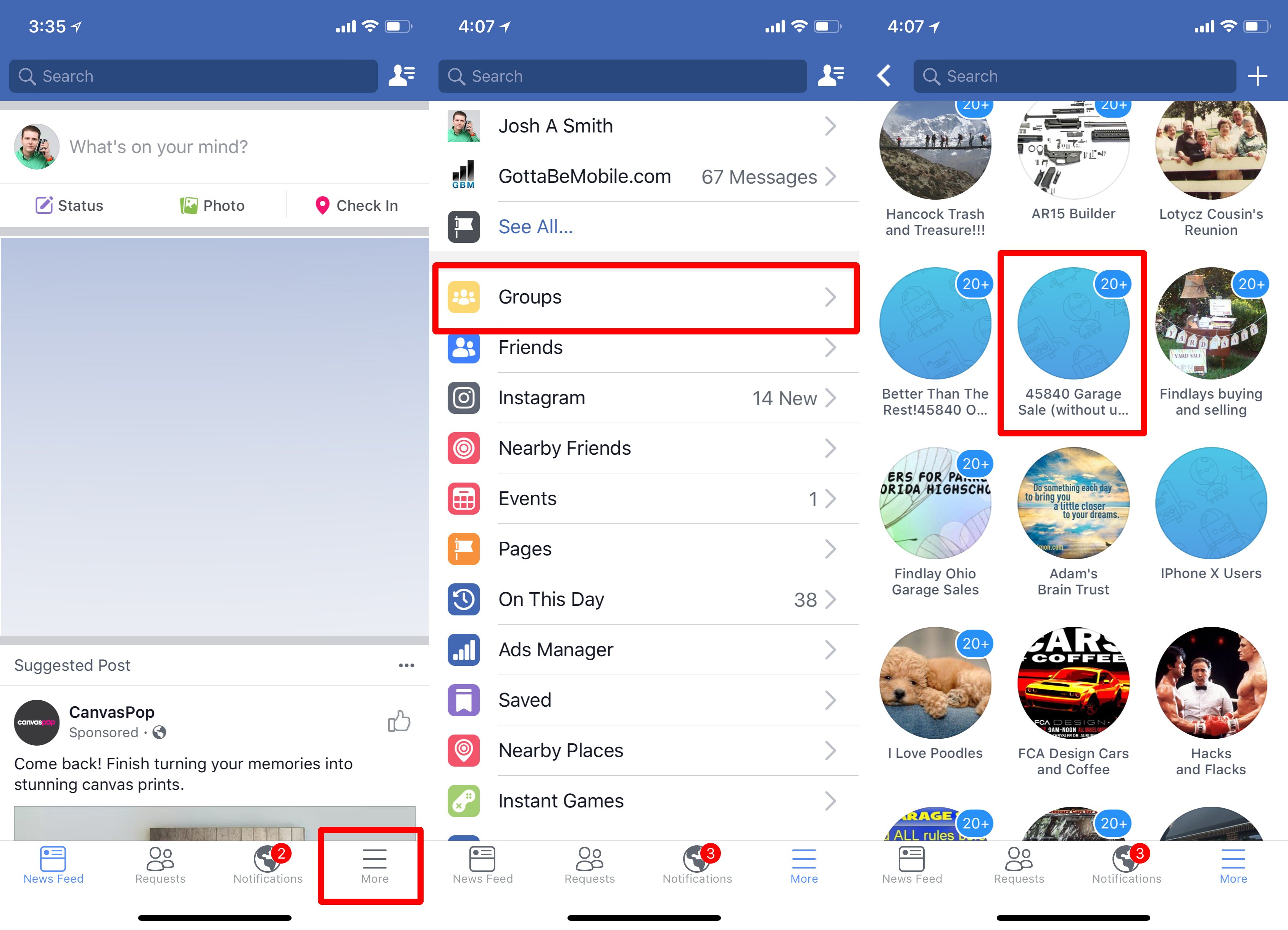
Are you sick of seeing Facebook Group notifications on your lock screen and in your Facebook notifications? You can manage your Facebook Group notifications so that you only see the ones you care about without completely turning them off.
This is especially useful if you are using Facebook Garage Sale groups or are part of an active user group where dozens or hundreds of people are posting in the group each day.
By default Facebook subscribes you to all Facebook group notifications, but you can change this easily to see the notifications you want for each group.
How to Stop Facebook Group Notifications
You can turn off Facebook Group Notifications for each individual group, and even better you can limit notifications to posts from friends, which will keep you in the know without completely abandoning a group.

Turn off Facebook group notifications to save your sanity.
- Open the Facebook app on your iPhone or iPad. (Or go to Facebook on your laptop)
- Tap on the three lines on the lower right labeled More.
- Tap on Groups.
- Find the group you want and tap on it.
- Tap on Joined.
- Tap on Edit Notification Settings.
- Choose Friends’ Posts or Off.
This will limit the notifications of that group to none or to just when a friend posts. You need to do this for each group that you want to limit notifications on.

Change Facebook Group notification settings.
On this page you can also change push notifications. Choose if you want to see Highlights or if you want no notifications pushed to you. This will help you avoid annoying notifications and interruptions into your day.
This is one step to controlling your Facebook news feed. This will help you use Facebook without annoying interruptions from garage sale groups and user groups that you are part of.
[slides postid=295956]
