How to
7 Android Settings You’ll Be Glad You Changed
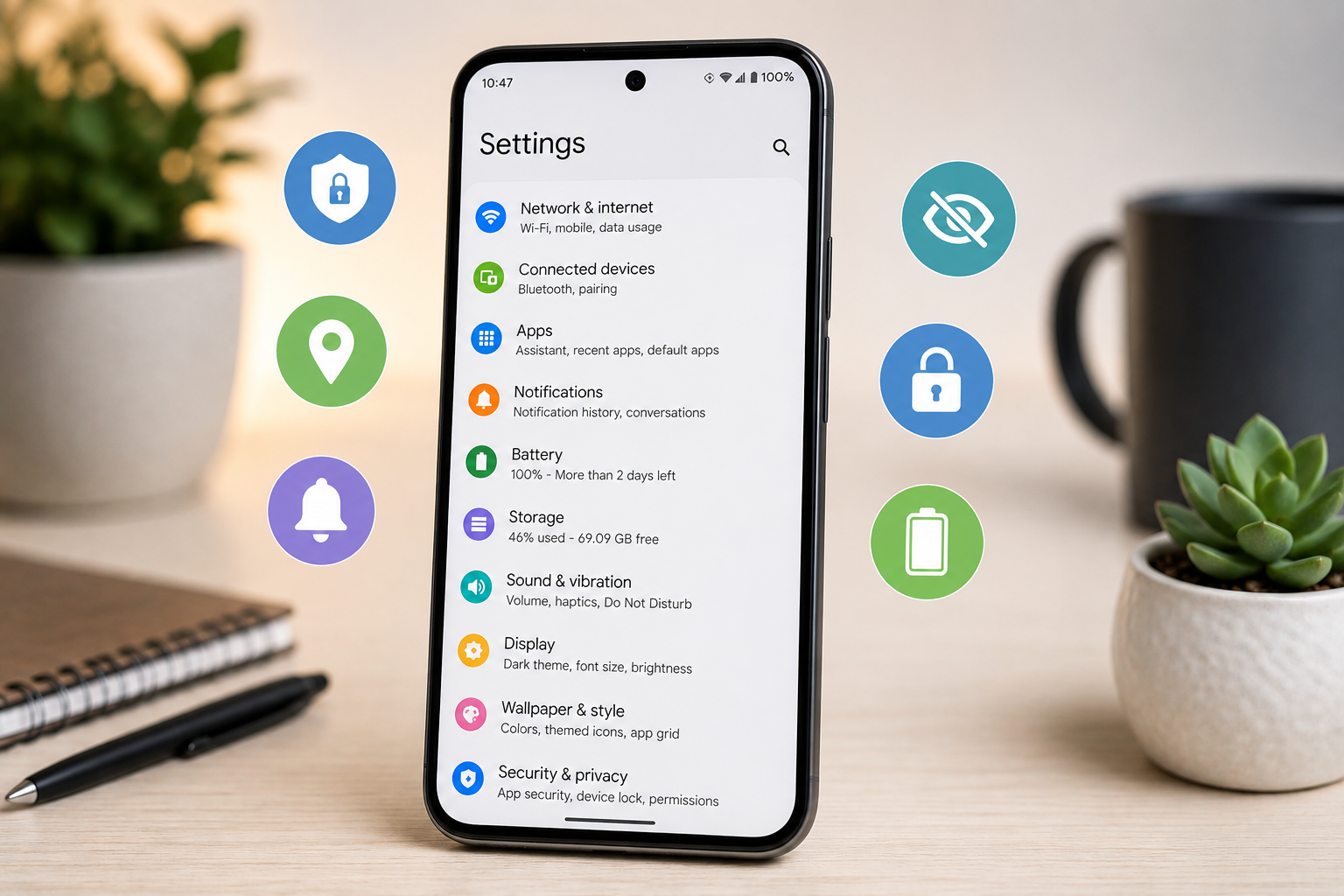
Your Android phone can do a lot right out of the box, but some default settings are worth changing.
A few quick adjustments can improve your privacy, tighten security, cut down on annoying notifications and give you more control over your phone. The exact menus can vary between Samsung Galaxy, Google Pixel, Motorola and other Android phones, but these Android settings to change are worth finding on almost any device.
1. Turn On Theft Protection
Android includes theft protection features designed to help protect your phone and personal information if the device is stolen.
Open Settings and search for:
Theft Protection
Depending on your Android version and phone manufacturer, you may see features such as Theft Detection Lock, Offline Device Lock and Remote Lock.
These protections can automatically lock your device when suspicious activity is detected or help prevent someone from accessing your information when your phone is offline.
While you’re there, make sure Find My Device or Google’s device-finding features are enabled. Losing a phone is irritating enough without discovering afterward that the feature designed to find it was turned off.
2. Review Your App Permissions
Apps can request access to your camera, microphone, contacts, location and other information.
Go to:
Settings > Security & Privacy > Privacy > Permission Manager
The wording may vary depending on your phone.
Instead of checking permissions one app at a time, Permission Manager lets you see which apps have access to things like your camera, microphone and location.
If a random game or shopping app has access to something it doesn’t reasonably need, change the permission.
3. Stop Giving Every App Your Precise Location
Not every app that needs your location needs to know exactly where you are.
Go to:
Settings > Location > App Location Permissions
Choose an app and review its location settings.
Android may allow you to choose options such as:
- Allow all the time
- Allow only while using the app
- Ask every time
- Don’t allow
You may also be able to turn off Use Precise Location for individual apps.
A navigation app obviously benefits from precise location. An app that simply needs to know what city you’re in probably doesn’t.
4. Take Control of Your Notifications
Install enough apps and your notification panel can quickly become a dumping ground for advertisements, promotions, reminders and other things you never asked to see.
Go to:
Settings > Notifications > App Notifications
Review which apps are allowed to send notifications.
You don’t necessarily have to disable an app completely. Many Android phones let you control individual notification categories so you can keep useful alerts while shutting off promotional ones.
This is especially useful for shopping, food delivery, games and other apps that have somehow concluded every sale deserves your immediate attention.
5. Check Which Apps Can Run in the Background
Some apps continue working even when you aren’t actively using them.
Depending on your Android phone, look under:
Settings > Battery
Then look for options such as Battery Usage, Background Usage Limits or App Battery Usage.
You may be able to restrict individual apps that don’t need constant background access.
Don’t aggressively restrict apps you rely on for real-time notifications or other background functions. The goal is to identify unnecessary activity, not prevent your phone from doing anything useful.
6. Turn On Private DNS
Private DNS is one of Android’s more useful settings that many people never touch.
Go to:
Settings > Network & Internet > Private DNS
On Samsung Galaxy phones, you may find it under:
Settings > Connections > More Connection Settings > Private DNS
Private DNS can encrypt DNS requests when used with a compatible provider, adding another layer of privacy to your internet activity.
If you don’t know what DNS provider you want to use, leaving the setting on Automatic is generally better than entering a random provider you found online.
7. Set Up Emergency SOS and Emergency Information
Emergency features are easy to ignore until the moment you actually need them.
Open Settings and search for:
Emergency SOS
Then review your phone’s emergency features and emergency contact information.
Depending on your device, Android may let you:
- Call emergency services using the power button
- Share your location with emergency contacts
- Store medical information
- Add emergency contacts
- Display emergency information from the Lock Screen
Take a few minutes to understand exactly how Emergency SOS is activated on your phone so you don’t accidentally trigger it later.
Which Android Settings Should You Change First?
If you don’t want to dig through every menu right now, start with security and privacy.
Check:
- Theft Protection
- App permissions
- Location permissions
- Emergency information
Then review notifications and background app activity.
Android gives you an enormous amount of control over your phone, but that control isn’t particularly useful if you never venture into Settings to see what’s enabled.
One More Android Setting Worth Checking
Open:
Settings > Security & Privacy
Look for your security update information.
Depending on your phone, Android may show the date of your latest security update and Google Play system update.
Keeping your device updated is one of the simplest ways to protect it against known security vulnerabilities.
And if you’re an iPhone household too, check out our guide to 7 iPhone Settings You’ll Wish You Changed Sooner. Many of the same privacy concerns exist on both platforms, even though Apple and Google have naturally hidden everything in completely different places.
FAQ
Are These Settings the Same on Every Android Phone?
No. Android manufacturers customize their software, so Samsung Galaxy, Google Pixel, Motorola and other devices may use slightly different menu names and locations. Searching for the setting by name is often the fastest way to find it.
Should I Turn Off Location Services Completely?
Usually not. Location services are important for navigation, weather, finding a lost device and other useful features. Reviewing location access for individual apps gives you more control without disabling location entirely.
Should I Restrict Background Activity for Every App?
No. Some apps need background access to provide notifications and other features. Restrict apps that appear to be using unnecessary battery or data rather than automatically restricting everything.
Is Android’s Theft Protection Worth Turning On?
Yes. Theft protection and device-finding features can provide additional protection if your phone is lost or stolen. Review the available options on your specific Android device and make sure they’re configured before you need them.
This article may contain affiliate links. If you purchase through these links, we may earn a commission at no extra cost to you.
Helpful Products
- Check this out on Amazon: USB-C GaN Fast Charger
- Check this out on Amazon: Android-Compatible Bluetooth Tracker
- Check this out on Amazon: Adjustable Phone Stand