
Apple
10 Common iPhone 6 Problems & How to Fix Them
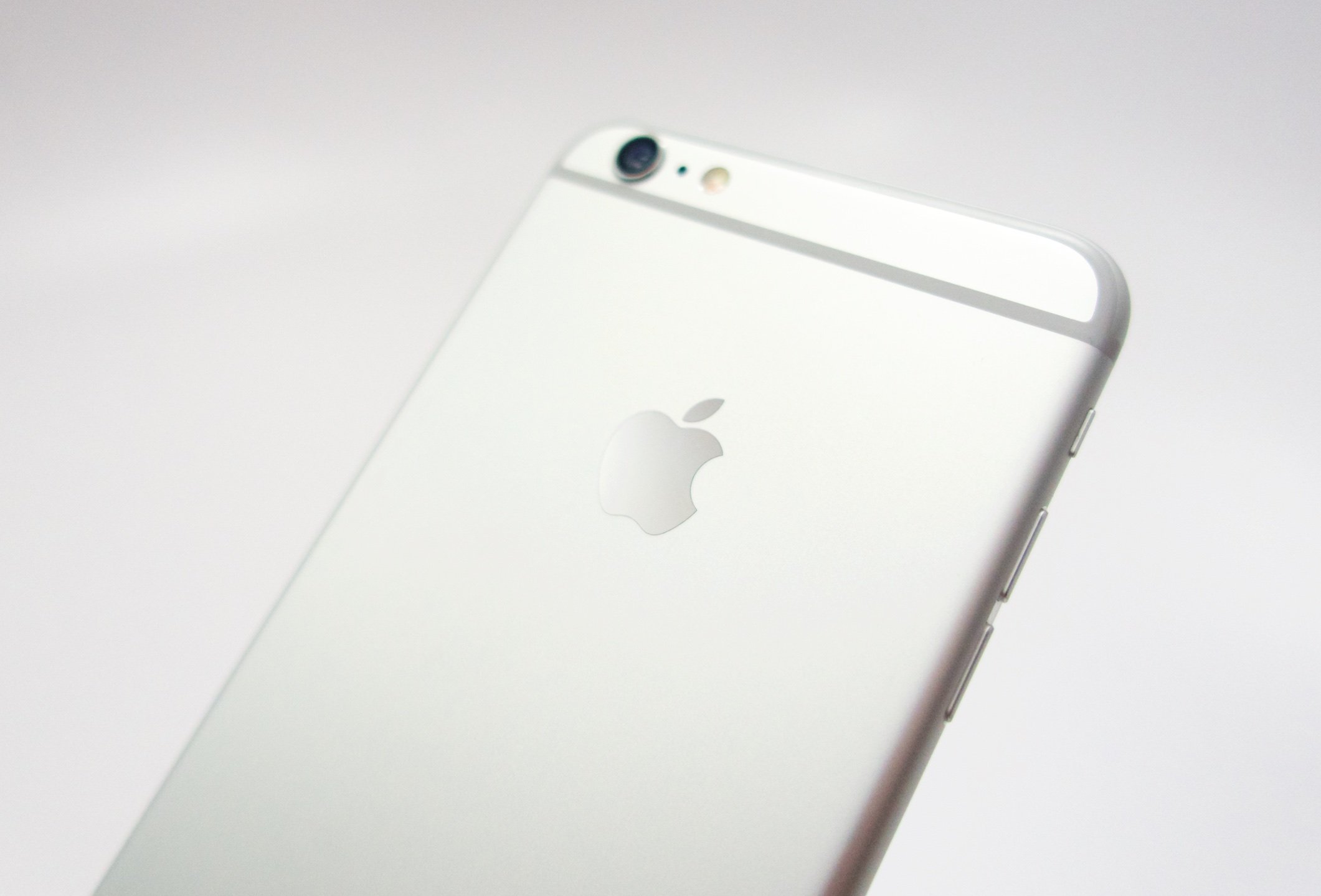
Apple’s fixed a ton of iPhone 6 and iPhone 6 Plus problems, but a number of issues remain. With that in mind, we want to show you how to fix the most common iPhone 6 problems in minutes.
Its been several years since the release of the iPhone 6 and iPhone 6 Plus. And in the years since their release, Apple’s worked to refine their software.
The two devices received a number of important iOS 8, iOS 9, and iOS 10 updates and more recently they’ve moved to Apple’s iOS 11 operating system. Both devices are currently running iOS 11.4.1 with an upgrade to iOS 12 in the works.
While the the iPhone 6’s iOS 11 update is currently stable for us, others are running into iPhone 6 problems on Apple’s new software. Others continue to struggle on iOS 10, iOS 9, and in some very rare cases, iOS 8.
Today we want to share the most common iPhone 6 problems we’ve seen and offer fixes to those in need. These fixes should also work for iOS 8, iOS 9, or iOS 10 if for some reason you’re currently running an older operating system.
Try these fixes before you take your iPhone 6 or iPhone 6 Plus down to the Geniuses at the Apple Store or a third-party repair shop.
How to Fix iPhone 6 Battery Life Problems
Our iPhone 6 battery life is still strong, but others are running into problems on iOS 11 and older versions of iOS.
While it’s easy to blame your problems on a new update, there’s a good chance that it’s an app or your bad habits causing the issues.
If you start noticing bad iPhone 6 battery life on iOS 11 or below, take a look at our list of potential fixes. They’ve helped us maintain solid battery life years after the phone’s release.
How to Fix iPhone 6 Wi-Fi Issues
Wi-Fi issues continue to be an issue for some iPhone 6 users. Some iPhone 6 users are saying that their Wi-Fi simply stopped working, others are complaining about unreliable speeds.
The first thing you’ll will want to do is reset your device’s network settings. To do this, open up the iPhone 6 and head to Settings > General > Reset > Reset Network Settings. You will need a passcode and you’ll also need your Wi-Fi password handy.
If that doesn’t fix things, try turning off Wi-Fi Networking. To do that, head to Settings > Privacy > Location Services > System Services. Reboot the phone.
If that still doesn’t help, try forgetting the Wi-Fi network that’s giving you problems. Go into your Settings > Wi-Fi > Select your connection > Tap Forget this Network at the top of the screen. Try reconnecting to the network.
We also recommend unplugging your router for 30 seconds to a minute to see if that helps. You might also want to update your router’s firmware.
How to Fix iPhone 6 Bluetooth Problems
If you start noticing Bluetooth problems on your iPhone 6 or iPhone 6 Plus, don’t panic. There are several potential fixes out there.
First, try resetting all of your iPhone 6’s network settings. Go to Settings > General > Reset > Reset Network Settings. This should only take a few moments.
If that doesn’t work, try resetting all of your device’s settings. To do this, open up the iPhone 6 and head to Settings > General > Reset > Reset All Settings. Make sure you have your passcode and Wi-Fi passwords handy before doing this.
If this doesn’t help, try forgetting your Bluetooth networks. To forget them: Settings > Bluetooth > Select your connection using the circular blue i tab > Tap Forget this Device. Now, try to connect your iPhone 6.
If you are having issues with Bluetooth in the car, consult your car’s manual and/or check out this guide from Apple. Fixing these issues can be tricky.
How to Fix iPhone 6 App Issues
There are a few things to try if your app performance suddenly takes a hit.
First, make sure applications on the iPhone 6 are updated. App updates with support (and fixes) for iOS 11 have been trickling out since launch.
iPhone 6 users who are forgetful or lazy will want to turn on automatic App Store updates because it will keep apps automatically updated and ensure that they are always on the latest version with the latest bug fixes.
If you’re having issues downloading apps from the App Store, try restarting your phone. This has worked for us in the past.
How to Improve iPhone 6 Performance
Our iPhone 6 models are pretty fast with iOS 11 on board, but others have run into random slowdown and sluggishness on Apple’s current operating system.
There are some ways to speed up the performance on the iPhone 6 if it takes a turn for the worst. We’ve outlined a number of different strategies that could help you improve the overall speed of your device.
Keep in mind, there is no cure all for the iPhone 6 or any other iPhone though users will want to try these before performing a factory reset.
If you’re already on iOS 11, consider upgrading to the latest version.
How to Fix iPhone 6 Landscape Issues
If your iPhone 6 gets stuck in landscape mode, there are a few simple fixes. One, you can try turning the phone in your hand to see if you can get it unstuck. If it won’t budge, try this fix.
Hold down the home button and the power button at the same time until the phone resets. Once it reboots, you should be fine.
How to Fix iPhone 6 iMessage Problems
iMessage issues are extremely common and iPhone 6 users continue to complain about them as we push toward the release of iOS 12.
If you do run into Message issues, the first thing to try is toggling iMessage off an on in Settings. If that doesn’t work, try rebooting the phone. If neither of those work, it’s time to reset the device’s network settings.
To do that, head into Settings > General > Reset > Reset Network Settings. The phone will reboot. Just remember, you’ll need to input your Wi-Fi passwords so have those on hand.
How to Fix iPhone 6 Random Reboots
Random reboots are plaguing some iPhone 6 users. There’s no guaranteed fix but there are some things to try if your phone starts exhibiting this issue.
First, try restarting the iPhone 6. If that doesn’t work, reset all of your settings. To do that, Settings > General > Reset > Reset All Settings.
It also might be worth it to uninstall recent apps if the problems just started. You can also try updating applications with the latest bug fix updates to see if that solves the issue.
How to Fix iPhone 6 Keyboard Lag
We’ve noticed occasional keyboard lag on the iPhone 6 when shooting off an email or iMessage. While there isn’t a cure all for this issue, there’s a few things iPhone 6 users can try.
First, try a simple reboot. If that doesn’t work, try resetting all settings. To do that, General > Reset > Reset All Settings.
How to Fix iPhone 6 Cellular Data Issues
We’ve heard complaints about cellular data issues on the iPhone 6. Some users are affected by slow connections, no connections and other random problems.
To try and fix these issues, first try restarting the iPhone 6. This has worked for us in the past. If that simply fix doesn’t work, try toggling cellular data on and off. This also has had a positive effect on our connectivity. To do that, Cellular > Cellular Data > Toggle Off.
Finally, if none of that works, try flipping Airplane Mode on, waiting 30 seconds, and then flipping it off. This, like the other fixes, has worked to dislodge cellular data issues in the past.
We also recommend getting in contact with your service provider to see if there is a network outage in your area. You can also check for outages using sites like DownDetector.
How to Fix iPhone 6 Problems If Nothing Else Works
If none of this works, we have a few recommendations for you.
First, get in contact with Apple’s Support account on Twitter. Apple’s
If they can’t help you, take the iPhone 6 to a Genius Bar at your local Apple Store. They should be able to diagnose the problem.
If you don’t want to leave the house, you can perform a factory reset. This will wipe your phone and return it to the state that it came in when you first bought it.
To do that choose Settings > General > Reset > Erase All Content and Settings. Again, this will wipe everything from the iPhone 6, so make sure you backup your data before taking this step.
[slides postid=448891]
