
Apple
How to Factory Reset iPhone 12
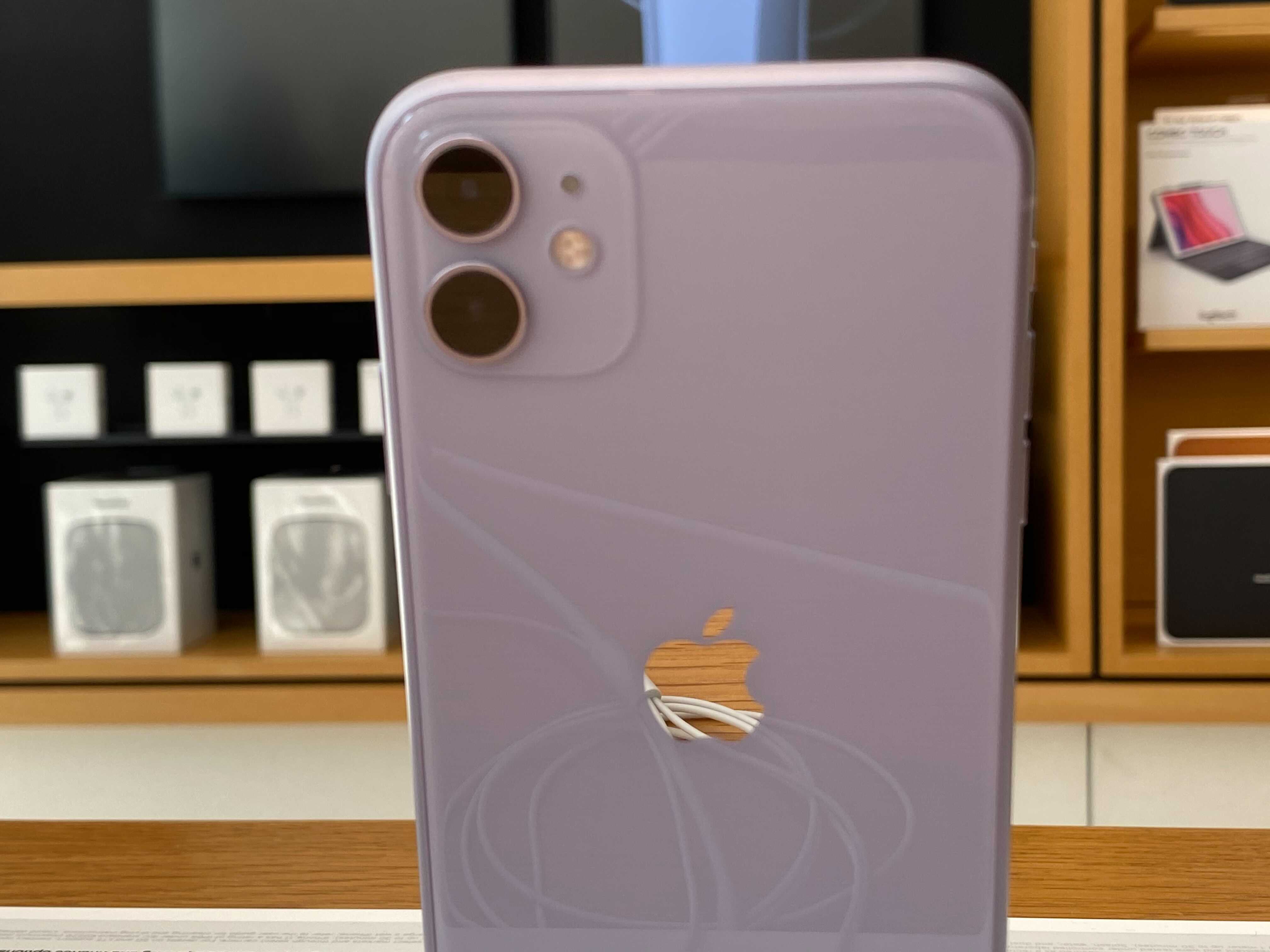
If you’re preparing to sell your iPhone 12 mini, iPhone 12, iPhone 12 Pro, and iPhone 12 Pro Max or you simply want to wipe everything and start from scratch, you’ll want to factory reset your iPhone 12.
Factory resetting your iPhone 12 will wipe the data stored on the device and it will revert the device to its original settings. This is useful if you’re planning to trade-in your phone, sell it or donate it it to a third-party. It can also be helpful if you’re having issues on your device and think starting over might help.
Before you factory reset your iPhone 12, iPhone 12 mini, iPhone 12 Pro, or iPhone 12 Pro Max, there are some steps you’ll want to take in order to prepare yourself and your device for the upcoming process.
The first thing you’ll want to do is update your Mac with the latest version of macOS (or Windows if you’re using a PC). This is an optional step, but it could help.
If you’re currently running macOS Mojave or older, and you don’t want to upgrade to the latest version of macOS, you’ll want to download the latest version of iTunes.
Once you’ve done that, you’ll want to backup the information stored on your iPhone. If you don’t want to keep the data saved on your phone, you can skip this step.
Finally, you’ll want to turn off Find My iPhone. Here’s how to do that:
- Head into the Settings app.
- Tap your name/account at the top.
- Tap Find My.
- Tap Find My iPhone.
- Toggle Find My iPhone to off.
Now you’re ready to factory reset your iPhone 12, iPhone 12 mini, iPhone 12 Pro, or iPhone 12 Pro Max.
How to Factory Reset iPhone 12
If you are using a Mac that’s running macOS Catalina, macOS Big Sur, macOS Monterey, or macOS Ventura, you’ll now want to open up Finder. If you’re running older software, open up iTunes. From there, follow these steps.
- Connect your iPhone to your computer.
- If you receive a message asking for your device passcode or to Trust This Computer, follow the steps on your screen. You’ll need to complete this before you can initiate the reset process.
- Select your iPhone from the sidebar in Finder or iTunes.

- Click Restore iPhone.
- Click Restore again to confirm that you want to proceed. From here, your computer will erase the data on your iPhone and install the latest version of iOS.
- Wait for your iPhone to restart.
Once your iPhone restarts, it will have reverted back to its factory settings.
[slides postid=494792]
