How to
Before You Install iOS 27, Do These 7 Things
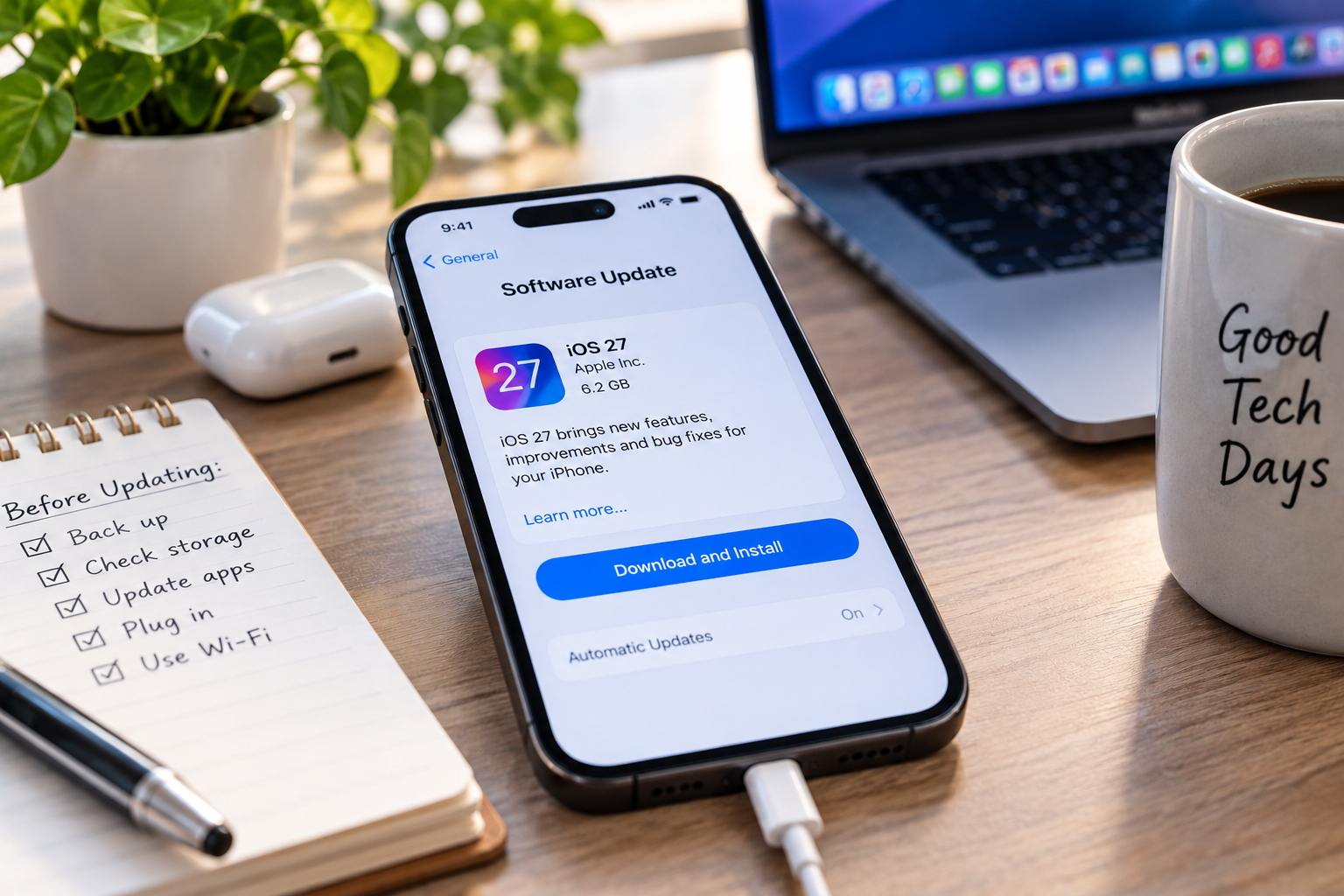
iOS 27 is officially available, bringing Apple’s latest features and changes to compatible iPhones. But before you tap Download and Install, there are a few things worth doing first.
Major iPhone updates don’t always go badly, but when they do, discovering you don’t have a recent backup while staring at an uncooperative phone is a particularly unpleasant way to spend an afternoon.
If you’re planning to install the iOS 27 update, do these seven things first.
1. Make Sure Your iPhone Supports iOS 27
Before worrying about anything else, make sure your iPhone is compatible.
Apple lists iOS 27 as available for the iPhone 11 and newer compatible models.
You can identify your iPhone by opening:
Settings > General > About
Look for Model Name.
If your iPhone isn’t eligible for iOS 27, don’t ignore the Software Update screen. Apple also released iOS 26.7 with security updates for supported devices remaining on iOS 26.
2. Back Up Your iPhone
This is the one step I’d consider mandatory before installing a major iOS update.
Go to:
Settings > [Your Name] > iCloud > iCloud Backup
Check the date of your latest successful backup.
If it isn’t recent, tap Back Up Now and let the backup finish before starting the update.
You can also back up an iPhone using a Mac or PC.
Hopefully you’ll never need the backup.
That’s rather the point.
3. Check How Much Free Storage You Have
Major iOS updates require free storage for the download and installation process.
Go to:
Settings > General > iPhone Storage
Your iPhone will show how much space is currently available and which apps are consuming the most storage.
If you’re running low, start with obvious space hogs such as downloaded movies, old podcasts, large videos and apps you no longer use.
Don’t start deleting important photos at random just because your phone wants more breathing room.
4. Update Your Apps
Open the App Store and make sure your important apps are current.
Developers frequently release updates around major iOS launches to improve compatibility with the new operating system.
Pay particular attention to apps you rely on every day, including banking, authentication, work, smart-home and password-management apps.
If an essential app hasn’t been updated in ages, checking its compatibility before installing iOS 27 isn’t a terrible idea.
5. Know Your Apple Account Password
Face ID has made it impressively easy to forget passwords we supposedly know.
Before installing a major update, make sure you know your Apple Account credentials and can access any trusted phone numbers or devices associated with your account.
You don’t want to discover an account-access problem in the middle of setting your phone back up.
This is also a good time to make sure your important passwords are securely stored somewhere you can access if the phone isn’t cooperating.
6. Plug In and Use a Reliable Wi-Fi Connection
Don’t start a major iOS update when your battery is nearly dead or when you’re about to leave the house.
Plug your iPhone into power and connect it to a reliable network.
Give yourself some time when you don’t urgently need the phone.
The download, preparation, installation and post-update processes can take a while, particularly when millions of other people have just been handed the same shiny Update button.
7. Decide Whether You Actually Want iOS 27 Today
You don’t have to install a major iOS release the moment it appears.
Apple released iOS 26.7 alongside iOS 27, giving eligible users another software-update option while still providing security fixes.
If your iPhone is critical for work, travel or something important happening in the next few days, waiting a little while before making a major operating-system jump can be reasonable.
On the other hand, software updates contain important security improvements. Apple’s security-release information confirms both iOS 27 and iOS 26.7 were released September 14.
The important part is not to forget about updates entirely.
Don’t Panic If Your Battery Seems Worse After Updating
You may notice unusual battery drain, warmth or sluggishness shortly after installing a major update.
Your iPhone can perform background tasks following an update, and things may settle after you’ve been using the new software for a while.
If your phone continues getting unusually warm, our guide to Why Your iPhone Gets Hot and How to Fix It covers the common causes and what you can do about them.
And if charging becomes the problem instead, Phone Won’t Charge? 10 Fixes That Actually Work walks through the things worth checking before assuming the hardware has failed.
Check Your Settings After Installing iOS 27
Once the update is complete, spend a few minutes exploring Settings rather than immediately forgetting the Settings app exists for another year.
Review privacy permissions, location access, notifications, security features and any new options introduced with the update.
Our guide to 7 iPhone Settings You’ll Wish You Changed Sooner is a good place to start.
Major software updates are also a good excuse to review settings you may have accepted years ago and never looked at again.
Should You Install iOS 27?
For most people with a compatible iPhone, iOS 27 will eventually be the natural upgrade path.
But there’s nothing wrong with preparing first.
Back up your phone, make sure you have enough storage, update important apps and confirm you can access your Apple Account.
Ten minutes of preparation is considerably less annoying than troubleshooting an iPhone while wondering whether your photos actually made it to iCloud.
FAQ
Is iOS 27 Available Now?
Yes. Apple released iOS 27 on September 14, 2026.
Which iPhones Support iOS 27?
Apple’s current security-release information lists iOS 27 for iPhone 11 and later.
Do I Need to Back Up Before Installing iOS 27?
You should. A backup gives you a recent copy of important information if something goes wrong during or after the update.
Do I Have to Install iOS 27 Immediately?
No. Apple also released iOS 26.7 on September 14 with security fixes for supported devices remaining on iOS 26.
Why Is My iPhone Hot After Installing iOS 27?
Some increased activity immediately after a major software update can occur while the device completes background tasks. If excessive heat or battery drain persists, investigate further rather than assuming the update is still responsible.
This article may contain affiliate links. If you purchase through these links, we may earn a commission at no extra cost to you.
Helpful Products
Check this out on Amazon: USB-C GaN Fast Charger
Check this out on Amazon: Lightning to USB-C Cable
Check this out on Amazon: USB-C to USB-C Charging Cable