
Apple
5 Things to Know About the macOS Ventura 13.6.7 Update
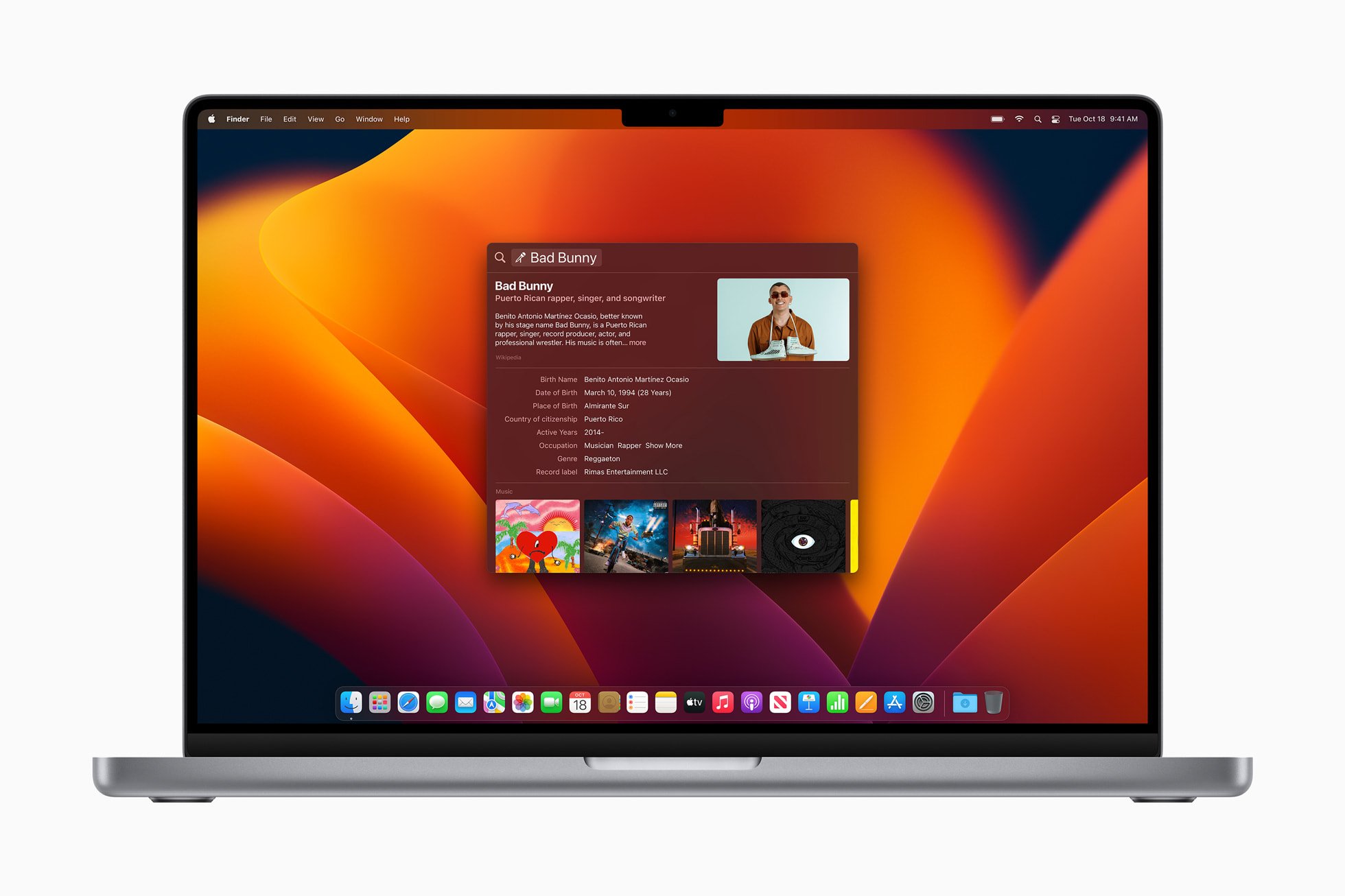
Apple’s released a new macOS Ventura 13.6.7 update for Mac users still lingering on the aging operating system.
macOS Ventura 13.6.7 is yet another point upgrade for macOS Ventura. It doesn’t have any outward facing features on board though it does bring important changes to Mac devices.
With that in mind, we want to take you through everything there you need to know about the macOS Ventura 13.6.7 update for Mac.
Table of Contents
Our guide covers the macOS Ventura 13.6.7 update’s changes, the current list of problems on board, the future of macOS Ventura, and macOS Ventura 13.6.7’s overall performance.
We’ll start out with thoughts about the firmware’s performance.
macOS Ventura 13.6.7 Review
If your Mac’s running macOS Ventura 13.6.6, you’ll see a fairly small download. It was a 552MB file for us.
If your Mac is currently software older than macOS Ventura 13.6.6, the download will be larger. And that’s because the changes from updates you skipped are baked in.
After the download finishes, the installation should take 10 or so minutes to complete. If you rely on your Mac to get through the day, plan accordingly.
For more on the macOS Ventura 13.6.7 download and installation, take a look at our guide.

We’ve been using the macOS Ventura 13.6.7 update on a MacBook Pro (2017) for several days now and for the most part the experience has been fine.
However, we have noticed increased lag and our laptop has also temporarily locked up a few times. We didn’t have this experience on the previous version of macOS Ventura.
macOS Ventura 13.6.7 Battery Life & Connectivity
- Battery life is stable, we haven’t noticed any abnormal drain
- Wi-Fi connectivity is currently fast and reliable
- Bluetooth is working normally
App Performance
- Third-party apps, including Twitter, Slack, Chrome, and Spotify are working properly
- First party apps like Safari and Podcasts are also stable at the moment
Speed
- macOS Ventura 13.6.7 is occasionally laggy and we’ve seen a few lockups
If your Mac is struggling on macOS Ventura 13.6.6 or an older version of macOS Ventura, you might want to install macOS Ventura 13.6.7 right now.
If you’re feeling leery about a move to the software, we’ve put together a list of the best reasons to, and not to, install the latest version of macOS Ventura on your Mac.
macOS Ventura 13.6.7 Problems
We aren’t alone. Other macOS Ventura 13.6.7 users have run into issues as well.
Problems include abnormal battery drain, Wi-Fi issues, Bluetooth problems, and problems with various first and third-party applications.
If you run into one of these issues on your Mac, here are some resources that should help.
First, take a look at our list of fixes for the most common macOS Ventura problems. If your Mac’s battery life is struggling on the software, check out our fixes for macOS Ventura battery life problems.
If you can’t find what you’re looking for in our guides, head over to Apple’s discussion forums. If the users there can’t help you, you might want to get in touch Apple customer support via the company’s website.
If you still can’t fix your issue(s), you’ll probably want to schedule an appointment at your local Apple Store.
macOS Ventura 13.6.7 Features
macOS Ventura 13.6.7 is a small update and Apple says it provides important security fixes.

There are three security patches on board the software and you can learn more about what they patch up over on Apple’s security site.
macOS Ventura 13.6.7 Downgrade
If you download the macOS Ventura 13.6.7 update and decide you want to move your Mac off of it, you can do so. Downgrading macOS software can be time consuming, but it’s an option.
If you’re interested, have a look at our downgrade guide. It will help you get familiar with the process and help you move to older macOS software.
What’s Next
If your Mac is struggling on macOS Ventura 13.6.7, you’ll be on your own for a bit.
It probably won’t be the last version of macOS Ventura, but it’s unclear when the next version will roll out.
Our best guess is we’ll see a roll out happen in July alongside macOS Sonoma 14.6.
We don’t expect Apple to bring new features to macOS Ventura down the line, but we do expect the company to continue offering security updates.
[slides postid=496871]
