
Android
How to Change the Galaxy S8 Lockscreen & Wallpaper
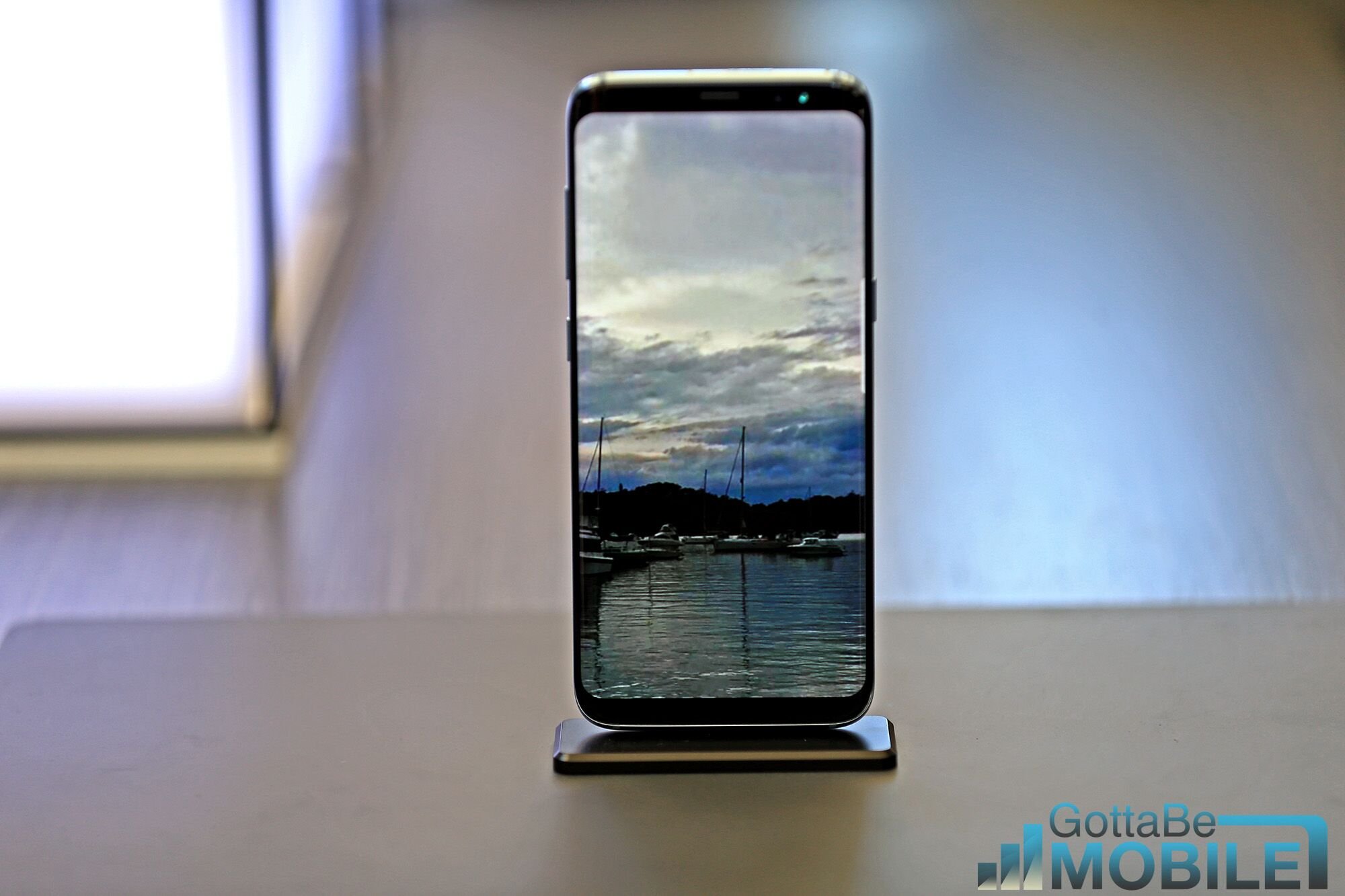
This guide will detail how to change the Galaxy S8 or Galaxy S8+ lock screen and wallpaper. Including adding your own images instead of relying on the Samsung theme store.
The Galaxy S8 and S8+ both have big 2960 x 1440 Quad-HD displays. Coming in at an impressive 5.8 and 6.2-inches. Getting good wallpapers in a high-resolution will also deliver the best experience.
Read: 15 Common Galaxy S8 Problems & How to Fix Them
One of the benefits of changing the lock screen and wallpaper is customization. Making your new phone more personal. The other is Samsung allows users to select a different image for both the lock screen and background wallpaper.

It’s easy to get overwhelmed with the Galaxy S8, as both phones have a bunch of features or options. Start with changing these 10 settings first, and then move on to the wallpaper and lock screen.
How to Change the Galaxy S8 Lock Screen & Wallpaper
There are a few different ways to change the lock screen image or background wallpaper. My favorite part is we can use two different images. One for the lock screen, and something like a live or moving wallpaper for the home screen.
Part of the confusion is when owners head into Settings and select Wallpapers and themes it goes to the Samsung theme engine, not somewhere to change the wallpaper. This isn’t very user-friendly and is hard to understand. The store has beautiful photos, themes, and custom icon options. If you just want to apply your own image to the background, it isn’t very straight-forward. Below are the different ways to complete this task.
Instructions

-
- Push and hold your finger on a blank area on the screen
- It will zoom out to a customization menu, select Wallpaper
- Scroll through Samsung’s options, or hit My Photos
- Now select the image you want, crop to fit, and hit Apply Wallpaper
- Choose home screen, lock screen or both
This is the easiest and quickest way to add a wallpaper to the Galaxy S8. It doesn’t require using the theme store or anything difficult. Just browse their pre-installed images or select one of your own. Find what you want and hit apply. This is how you use photos right off of your smartphone.

To find some beautiful wallpapers like mine above look through Samsung’s theme store or download the app called Zedge and browse their collection. Make sure you get at least a 1080p HD image for the best results.
Lock screen Wallpaper
In case you didn’t notice during our instructions above, adding a wallpaper to the lock screen is just as easy. Follow the exact same steps as above for the lock screen. When you find the image you’d like to use and hit apply the phone will ask. Do you want to apply this to the home screen, the lock screen, or both?
Select both if you only want one image, or add a different image for each area on the device. I have a Packers logo on my lock screen and a pretty wallpaper everywhere else. Do what you want.
Samsung Theme Store
Those that head into Settings > Wallpaper & Themes may find a huge collection of themes, wallpapers, live wallpapers, custom icons and more. However, the steps aren’t as clear. Basically, you just select anything you want in here, download it and hit apply.

When you first open the theme store it defaults to wallpapers. There are tons of recommendations and popular options to choose from. At the top of the page, the first square is “Your Gallery” which you can select to use your own photos, instead of the ones listed.

We recommend browsing the gallery as there are tons of excellent images and options to choose from. Once you find a good one simply download it and hit apply. The app will let owners choose if it goes to the lock screen or the home screen background, as expected. There are dozens of neat themes that will change the entire look and feel too, for those interested.
While you’re at it customize the on-screen navigation keys, change the always-on display and more. There are tons of options and controls for owners. Drop us a comment below with any other questions or concerns.
