
Android
How to Take a Screenshot on the Galaxy S8
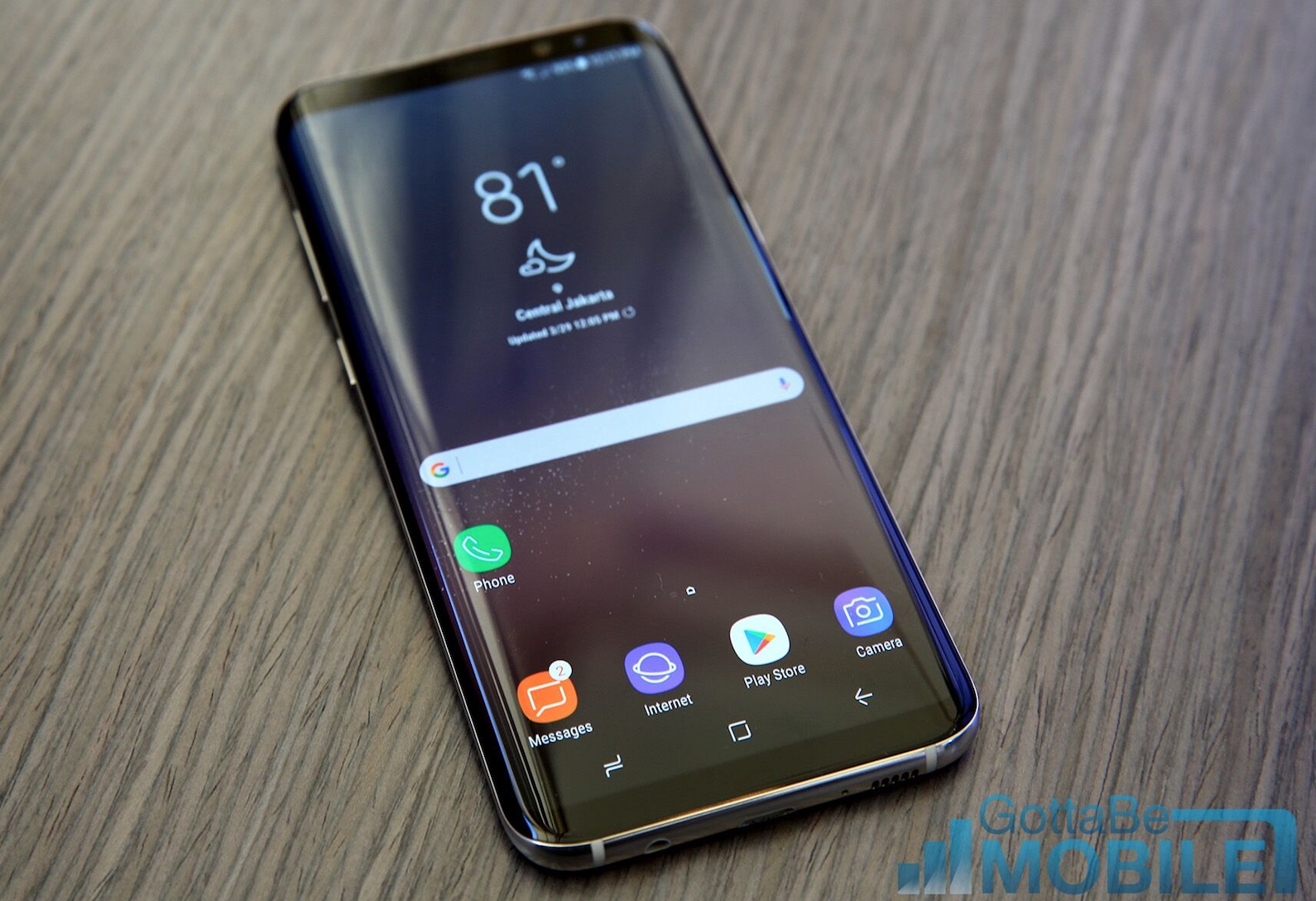
For the first time in seven years Samsung’s new Galaxy S8 and Galaxy S8+ don’t have a physical home button. As a result millions of new owners will be wondering how to take a screenshot on their phone. Because the old method no longer works. Whether you’re new to Samsung or have used them for years, this is one of many features you’ll want to know.
On March 29th the new Galaxy S8 and S8+ were unveiled with an April 21st release date. Both phones have huge screens, a sleek new design and no home button. Instead the fingerprint scanner is on the back near the camera. As more owners pick one up they’ll have lots of questions.
Read: Best MicroSD Cards for the Galaxy S8
It’s a feature that most Android users know, but things will be different this time around. There are two ways to take a screenshot on the Galaxy S8, and we’ll explain them both. Read on for the quick instructions.

iPhone converts or those who’ve used other Android smartphones will feel right at home. That’s because a quick and simple button combination will instantly capture whatever is on the screen.
For those confused, a screenshot (or screencap, screengrab) is essentially our smartphones capturing and saving everything on the screen. Additionally, this can then be edited or cropped to get exactly what you want. It’s a feature that is extremely convenient for an array of reasons.
How to Take a Screenshot on the Galaxy S8
Taking and saving a screenshot is very simple on the Galaxy S8. All owners need to do is push and hold both the power and volume down buttons at the same time. Push, hold and let go. That’s just one of two methods though.

Push and hold both Power and Volume down at the same time, to take a screenshot
Briefly push and hold down both buttons at the same time, then let go. Owners will see and hear the screenshot capture. That’s it. The phone saves whatever was being displayed, and can be accessed from the gallery.
Smart Capture
Additionally, a setting is enabled under “Advanced settings” called “Smart capture” which shows extra information after a screenshot. Like instantly taking another screenshot (to capture entire email or webpage) or instantly crop and share it. It looks similar to the screenshot on the bottom right shown below from the Galaxy S7.

The extra smart features are nice to have, but get in the way of taking multiple screenshots quickly. As the phone has to wait for the popup of options. Owners can head into Settings > Advanced Options and disable “Smart Capture” to get rid of it.
Galaxy S8 Screenshot Second Method
Thankfully there is also a second way to take a screenshot that’s even easier. Although I find myself using the button combo most. Samsung has neat gestures with its phones for a screenshot.
Hold the edge of your hand (wrist, edge of palm and pinky finger) on the screen. Then just slide the edge of your hand across the entire display from left to right. You’ve probably done this on accident and didn’t know how, but it’s a feature. It’s how to take a screenshot on the Galaxy S8. The image below should clear up any confusion on how.

It works in either direction, and may take a few tries before you master the technique. Once figured out owners can snap a copy of the display in seconds, then instantly share it save it. Personally, we’d recommend owners use the power+volume down button combo for screenshots on the Galaxy S8 and S8+.
Other Details
Screenshots will be saved to the gallery and found there or with the My Files app. Additionally a preview of the screen capture will be located in the notification pulldown bar for easy access, sharing or to make edits.
Also, if you happen to notice you’re taking screen shots accidentally, it’s probably the palm-swipe method. Here’s how to turn it off. Settings > Device > Advanced features > Palm swipe to capture > and toggle the on/off button. As a reminder, all older Samsung smartphones or tablets with a home button follow different directions. Just hold power and the home button simultaneously, and it snaps a screenshot. This new method is only for the Galaxy S8 and S8+.
Screenshots are very handy and something many use on a daily basis. And that’s all you need to know. Simultaneously hold the power and volume down buttons then let go, or use the palm gesture motion detailed above. It’s that easy and only takes a second. Stay tuned for more Galaxy S8 how-to guides in the near future. While you’re here, pickup a screen protector from our roundup below.
[slides postid=374439]
