
Apple
How to Use the Secret iPhone Emoticons Keyboard
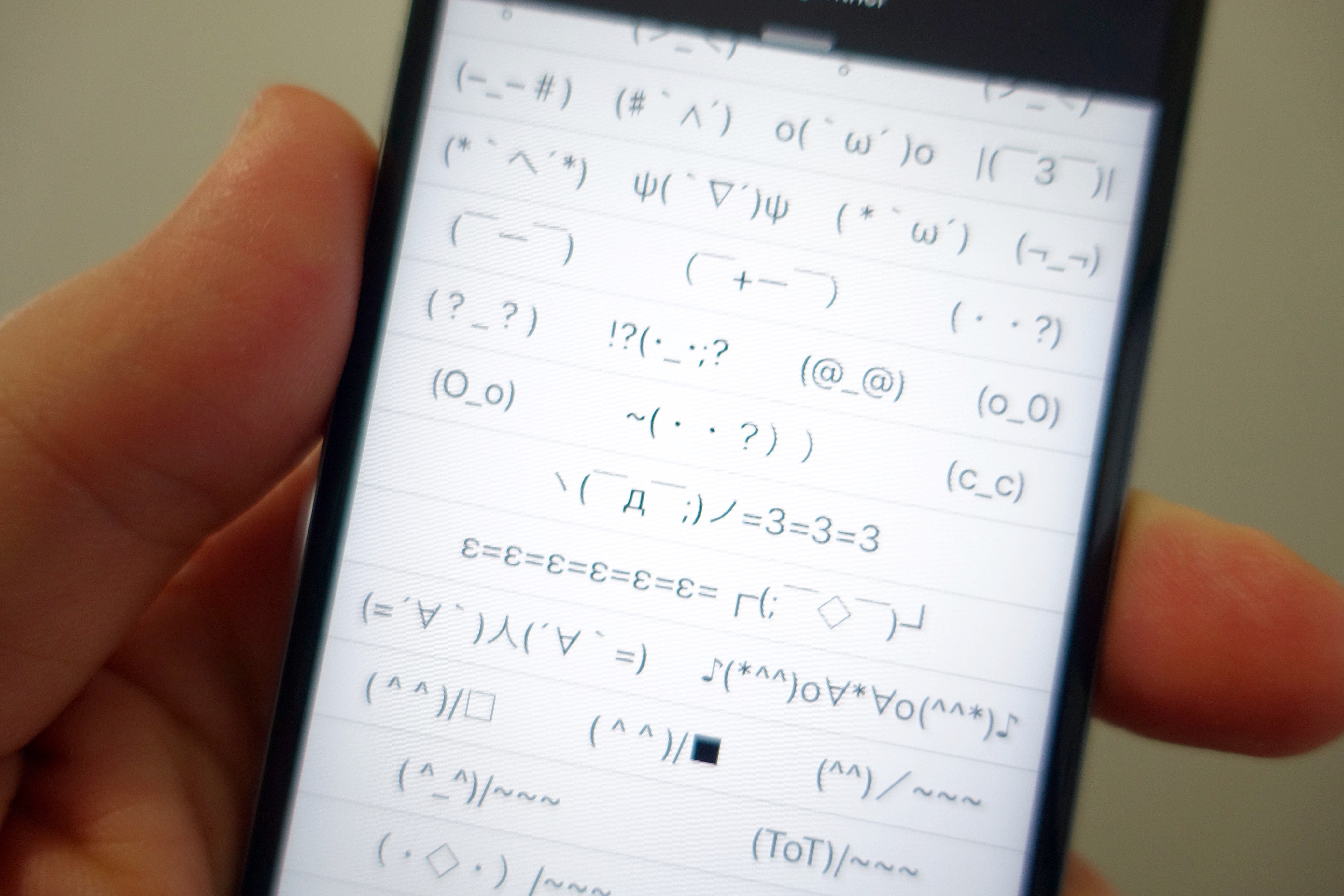
This guide will show you how to use a secret iPhone emoticons keyboard to quickly access hilarious and otherwise hard to type emoticons anywhere you can type text. You don’t need to buy or download a new emoji keyboard to use these options, you just need to turn this on in the iPhone settings.
The secret iPhone emoticon keyboard is not the same as the iPhone emoji keyboard that you can access automatically on most iPhones. Instead of the small emoji faces and pictures, the iPhone emoticon keyboard combines punctuation and symbols to deliver interesting ways to spice up your messages.

How to use the secret iPhone emoticon keyboard.
You can use these in any app and they will show up on any iPhone, Android or computer that you send the message to. You don’t need to wait for a iOS 9.3 update or for Apple to add new emoji in 2016 — these are already on your iPhone.
Here’s how you can use the secret iPhone emoticon keyboard right now.
The first thing you need to do is tap on Settings on your iPhone. This will take you to your main screen. From here, tap on General and then on Keyboards.

This will get you to the main keyboard settings page on the iPhone. Tap on Keyboards to see the iPhone keyboards you are using. Then tap on Add New Keyboard…, which opens up a long list of keyboards you can enable.
Scroll down until you reach Japanese and then tap on it. On the next screen tap on Romaji and then tap on Done.

This adds the secret iPhone emoticon keyboard to your iPhone so that you have access to it, but you still need to tap in the right place to get to it.
Open an app that lets you type a message. Now tap on the small globe in the bottom left. This may open the emoji keyboard. If it does tap on the small Japanese symbol in the lower left.
This will bring up the Romanji keyboard. Now tap on 123, to get to symbols. Tap on the small face icon to see the emoticon options appear in the suggestions scroll area. Tap on the up arrow to the right to expand and see more emoticon options take over your screen.

Scroll and choose the emoticon you want to use by tapping on it. This will insert it into the message so you can send it. Since this uses symbols, you can send the messages to anyone, even if they don’t have emoji options turned on.
[slides postid=330680]
