
Apple
How to Downgrade from iOS 12.4.1
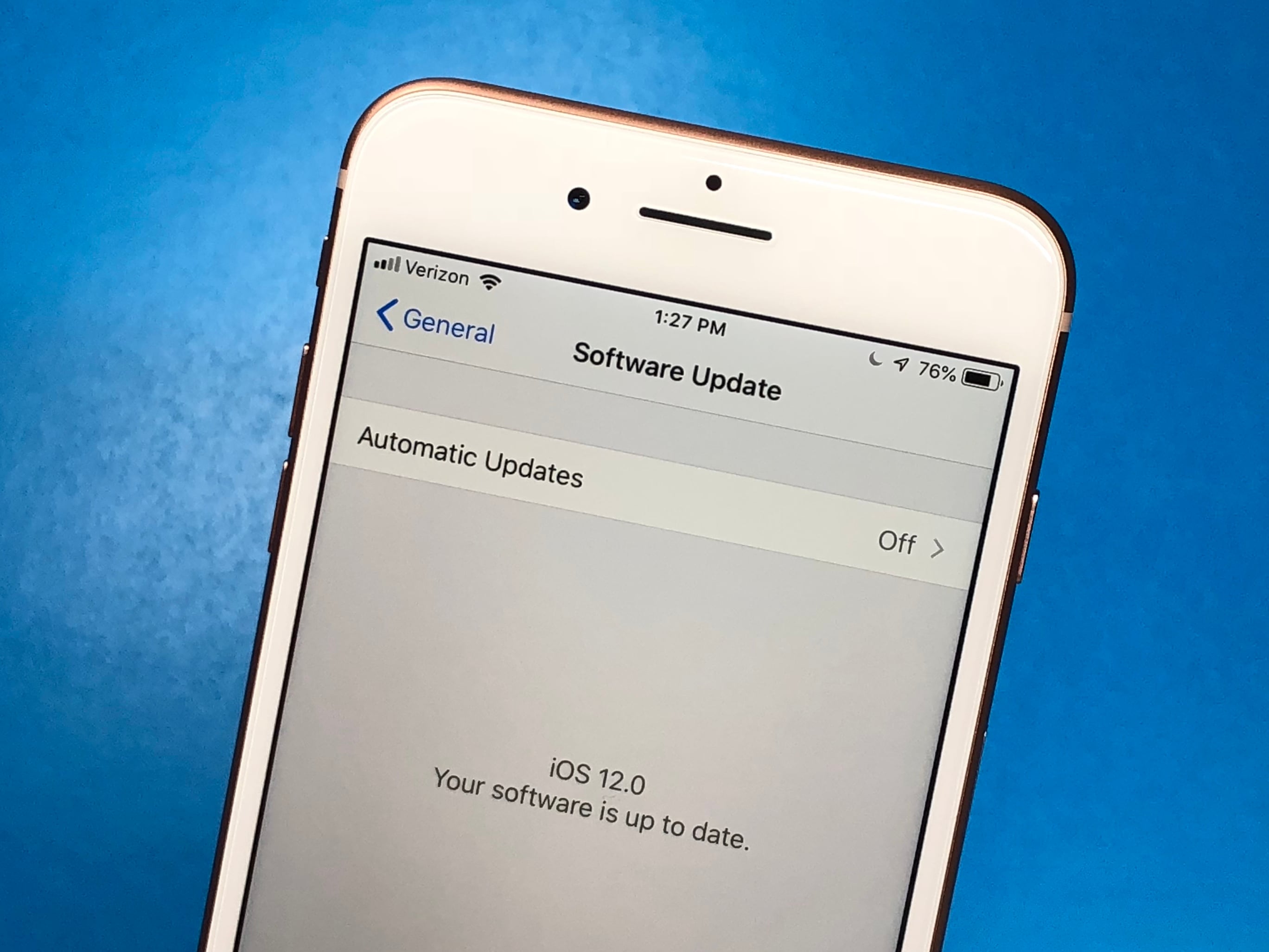
If you run into iOS 12.4 problems, you want to use the iOS 12.4 jailbreak, or you don’t like the changes or you just want to go back to what you’re used to you can downgrade iOS for a limited time. We expect that Apple will close the downgrade from iOS 12.4.1 to iOS 12.4 later today or this week. If you are trying to downgrade from iOS 13 to iOS 12.4 to jailbreak, you can do that too.
You can downgrade from iOS 12.4.1, but not all the way back to iOS 12 or to iOS 11 at all. You can then restore a backup you made while on iOS 12.4. You cannot restore a backup made on iOS 12.4.1 after you go back.
Officially Apple doesn’t support an iOS 12 downgrade process, but it’s actually very straightforward. Expect to spend about 20 to 30 minutes downgrading, and then longer restoring from a backup if you want to get all of your data back.
Apple closed the iOS 12 to iOS 11 downgrade process already, so you are stuck on iOS 12.
How to Downgrade from the iOS 12.4.1 to iOS 12.4

This is how to downgrade from iOS 12.
This guide will show you how to roll back to iOS 12.4 on your iPhone or iPad. You will not be able to read it on your device while you downgrade, so print it out or pull it up on another device.
If you made an archived backup then you know for sure that you can go back. If you are concerned we suggest also making sure you have a backup of your iPhone or iPad on iOS 12 just to be safe.
Here’s what you need to do to go back to iOS 12.4 from iOS 12.4.1.
- Download the iOS 12.4 update for your iPhone from this website.
- /Make sure there is still a green checkmark in the Apple Signing Status column. If there is not one, do not proceed.
- Turn off Find My iPhone on your iPhone. Go to Settings -> tap on your name at the top of settings -> Tap on iCloud -> Tap on Find My iPhone -> Toggle off. Enter your password.
- With your phone backed up and all the steps above completed, plug your iPhone into your computer.
- Open iTunes and Click on the iPhone icon.

Click the iPhone icon in iTunes.
- Click on the Restore iPhone button using a special click. On Mac hold alt/option when you click and on PC hold Shift when you click.
- In the window that opens, find the iOS 12 file you just downloaded and click on it and then click open.
- Choose to erase and restore your iPhone. Click Restore to begin this process
- While you wait the iPhone will restart multiple times. When it is finished you will be back on iOS 12.4.
Once the process completes, you can decide if you want to restore from a backup that you made locally or on iTunes. As you set up your iPhone it will ask if you want to set it up as new, or if you want to restore a backup. When that screen appears, choose whichever option you want. Most people will want to restore from a backup.
[slides postid=448891]
